About this video
What is Top Z Distance in 3D Printing?
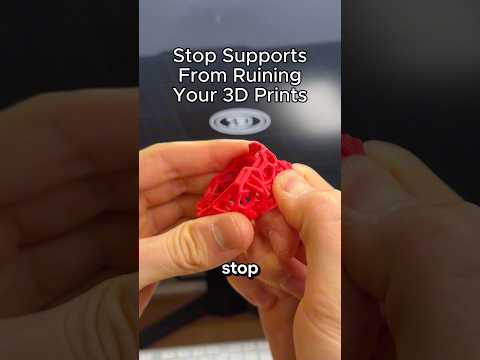
Top Z distance is a slicer setting that controls the vertical gap between the top of your support structures and the actual surface of your print. This tiny gap is crucial for achieving clean breaks when removing supports. Too little distance and supports fuse to your print, leaving ugly scars. Too much and the supports become unstable during printing.
Why 0.265 is the Sweet Spot
Setting your top Z distance to 0.265 creates the perfect balance for most FDM printers and common filaments like PLA and PETG. This value is measured in millimeters and represents a gap wide enough to prevent fusion but narrow enough to maintain printing stability. When you snap the supports away, this precise distance allows for a clean break without residue or marks on your model.
How to Change This Setting in Your Slicer
- Open your preferred slicer software (Cura, PrusaSlicer, Bambu Studio, etc.)
- Navigate to the Support or Support Settings section
- Locate the "Top Z Distance" or "Z Gap" option
- Enter 0.265 as your value
- Slice and print as normal
Tips for Best Results
- Allow cooling time: Let your print cool completely before removing supports. Warm filament sticks more readily.
- Work at the right angle: Apply gentle twisting pressure rather than pulling straight up
- Use support breakers: For stubborn areas, small pliers or tweezers can help
- Test on scrap prints: Fine-tune between 0.2 and 0.3 for your specific printer and material
Frequently Asked Questions
Does this work for all materials?
Yes, 0.265 is a versatile starting point for PLA, PETG, and ABS. Some users adjust slightly higher for flexible filaments.
Will this setting affect print quality?
No, it only changes the gap between supports and your model—it doesn't compromise structural integrity.
Can I use this for tree supports?
Absolutely. The top Z distance applies to all support types, including tree supports and standard column supports.
Related Settings to Explore
Consider experimenting with support density, support interface layers, and support pattern types to further optimize your printing workflow. These settings work together with top Z distance for the best possible support removal experience.