All resources

About this video

Turn Any Photo into a 3D Model

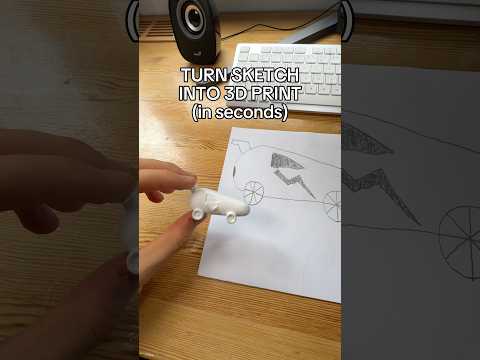
If you have a picture of something you want to print, PrintPal's image-to-3D workflow can convert it into a print-ready 3D model in under two minutes — no CAD skills required. Head to the Generate AI tab on PrintPal.io, switch to Image mode, and drag your photo into the upload box. The AI removes the background and generates a clean mesh for you.

How Image-to-3D Works

  • Upload a clear photo with the object centered against a simple background for the best mesh.
  • The AI auto-removes the background — no manual masking needed.
  • Generate, then spin the rotatable preview to inspect details before downloading.

Settings That Matter

  • Model Quality: a speed-versus-quality dial. Default is fast; Ultra and Super give cleaner geometry. Use Super Resolution for production-ready prints.
  • Full Color: enable for a colored model suited to multi-color printing.
  • Advanced controls: tune steps, resolution, and Creative Freedom to set how closely the AI follows your image.
  • Export formats: STL for printing, plus GLB, OBJ, and PLY for other uses.

AI Image Editing & Style Presets

Before generating, edit your image with a text prompt like "make it cartoon style" or "clean up the background." Or use one-click presets: Enhance, Cartoon, Low Poly, Anime, or Voxel.

From Model to Slicer

Click the download button for a print-ready file, or send the model straight into your slicer — Bambu Studio, OrcaSlicer, Flash Studio, Creality Print, or Ultimaker Cura. Accept the browser's "Always allow" prompt so future sends open instantly.

For colored models, the AMS exporter reduces the palette to 2–8 filament slots with a live preview, then exports an OBJ with baked vertex colors or an experimental 3MF with color groups — ready for your AMS.

FAQs

  • Do I need CAD experience? No. The whole flow is image-driven.
  • What file should I print? STL is the print-ready default.
  • Can I do multi-color prints? Yes — enable Full Color and use the AMS exporter.
  • What if my slicer isn't installed? A download button appears in the send window as a fallback.
Full Transcript

Got a picture of something you want to 3D print? In under two minutes, I'll turn a single image into a print-ready 3D model — no cad skills required. Let's do it live. Start by going to Print Pal dot IO, then go to the "Generate AI" tab to open the design page. Start by making sure you're on Image mode, then drag your photo right into the upload box — or click to browse. For the best results, use a clear photo with the object centered and a simple background. Our AI will handle removing the background and generating the mesh. Before we generate, a quick look at the settings. Model Quality is your speed-versus-quality dial — Default is fast, and Ultra or Super give you cleaner results. Use Super Resolution for production ready 3D Prints. Flip on Full color if you want a colored model for multi-color printing, otherwise the model will be generated with no color. And under Advanced, you can fine-tune detail with steps and resolution, set how closely the AI follows your image with Creative Freedom, and pick your export format — STL for printing, GLB or OBJ for everything else. Here's where it gets fun. Before turning it into 3D, you can edit the image with AI. Just describe the change — like 'make it cartoon style' or 'clean up the background.' Or skip the typing and use a one-click style preset: Enhance, Cartoon, Low Poly, Anime, or Voxel. I'll hit Cartoonify to make the model more fun. Now hit generate. In a few seconds, your flat image becomes a real, rotatable 3D model. Spin it around, check the details — and if you want a different angle, just reset the view. Happy with it? Click the blue download button to save the file straight to your computer — by default that's a print-ready STL, but remember you can switch to GLB, OBJ, or PLY back in the settings. Or skip the download entirely and send it straight into your slicer. Just pick the one you use — Bambu Studio, OrcaSlicer, Flash Studio for Flashforge, Creality Print, or Ultimaker Cura — and we'll launch it and load the model for you automatically. The first time, your browser will ask for permission to open the slicer — check 'Always allow' and every future send opens instantly. If a slicer isn't installed, there's also a download button right in this window. If you generated a full-color model, you can prep it for multi-color printing with the AMS exporter. Set how many filament colors to reduce it to — anywhere from 2 up to 8 AMS slots — and watch the live preview update with the exact palette it'll use. You can fine-tune how the colors are simplified and how aggressively they blend with the strength slider, then export as an OBJ with baked vertex colors — which works everywhere — or an experimental 3MF with color groups. It drops right into Bambu Studio or OrcaSlicer, ready for your AMS. That's image-to-3D in under two minutes. You can now bring your ideas to life, happy 3D printing!