Flash writes a precompiled image over USB-C in Chrome or Edge. The .ino below is the source — you do not need Arduino IDE unless you want to change the sketch.
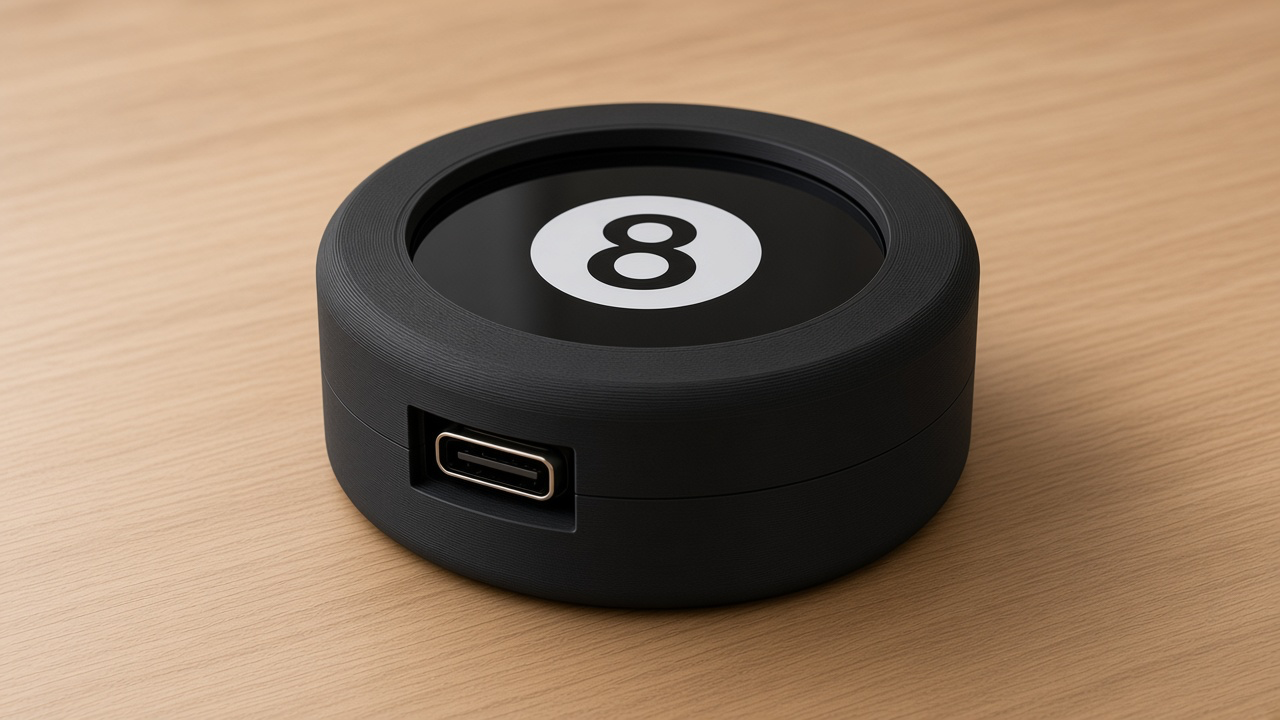
A magic 8-ball you can actually shake. Idle is a glossy black circle with an 8. Ask a question, shake the puck (or tap), and a blue window swirls up a two-line fortune — plus a few printer-shop jokes like YES, ADD SUPPORTS.
Nothing goes to the internet. The whole toy lives on the chip.
What you will learn
What a state machine is (a program with a few “moods”).
How an accelerometer feels a shake.
How a list (array) of answers works, and how random picks one.
Why we draw off-screen first, then show the picture (no flicker).
Meet the Desk Pal puck
This project uses the Waveshare ESP32-S3-Touch-LCD-1.28 — a round gadget about the size of a drink coaster.
A 240×240 round color screen (GC9A01 — 240 dots across and 240 down).
A CST816S touch glass, so a finger is a mouse.
A QMI8658 motion sensor (IMU) that feels a shake.
No Wi-Fi. The toy never joins a network. Ask, shake, and the answer all happen on the chip.
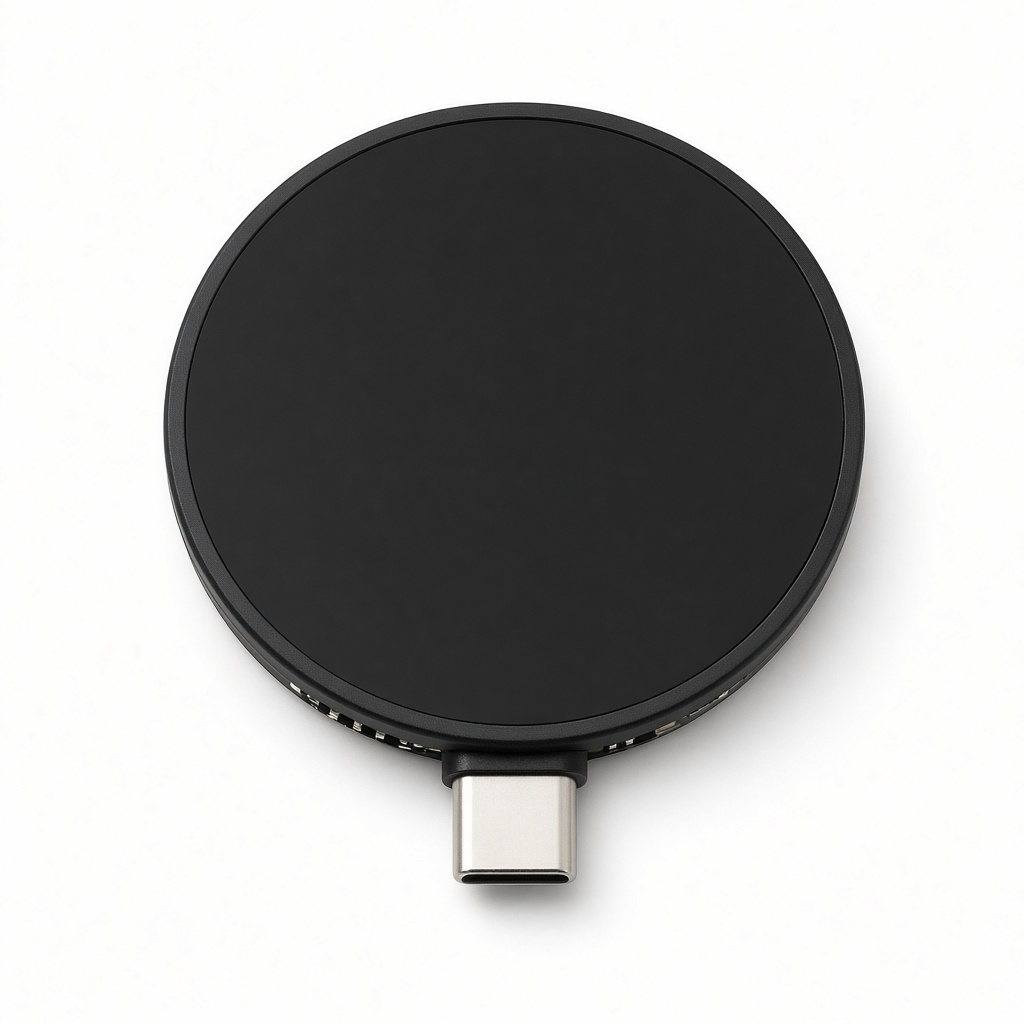
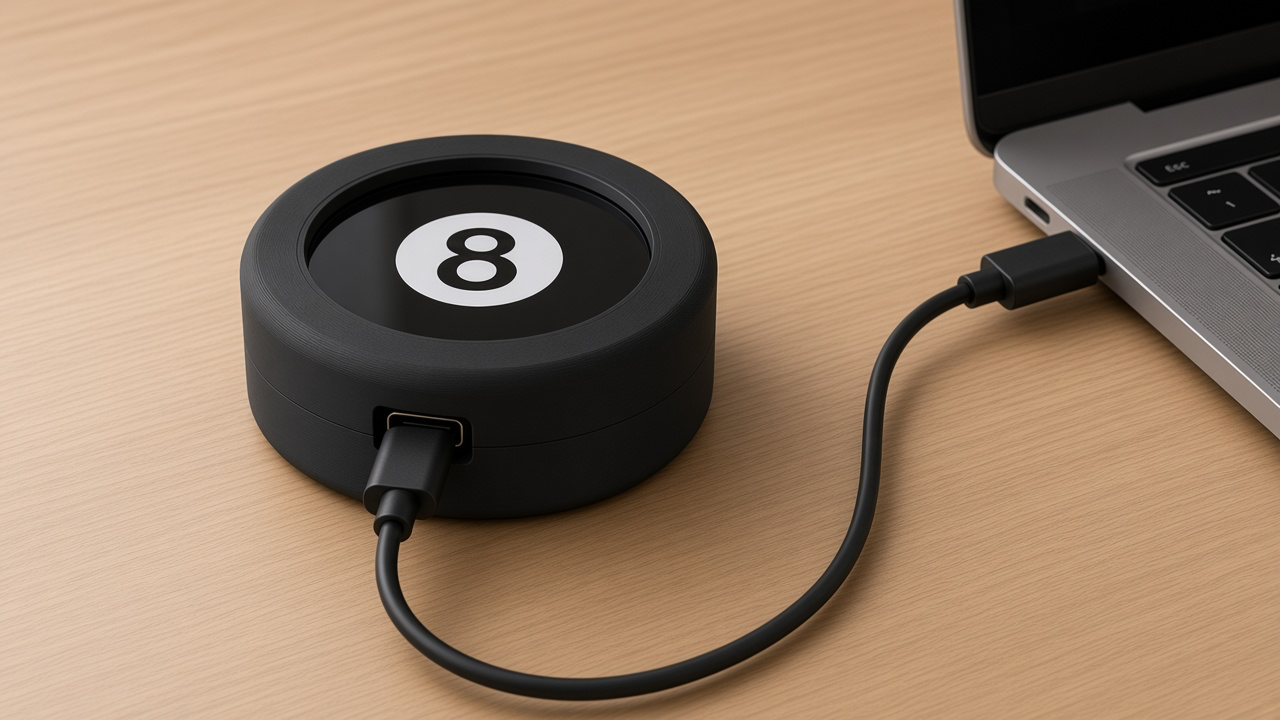
A USB-C port for power and for loading the program.
The program you load is a .ino file — that is Arduino-style C++. You do not need to understand every line. This guide teaches the ideas, then shows the few lines that make each idea real.
Note
Word to know — firmware. That is just the program living on the chip. Flashing firmware is like installing an app, except the chip can only run one app at a time.
The finished gadget
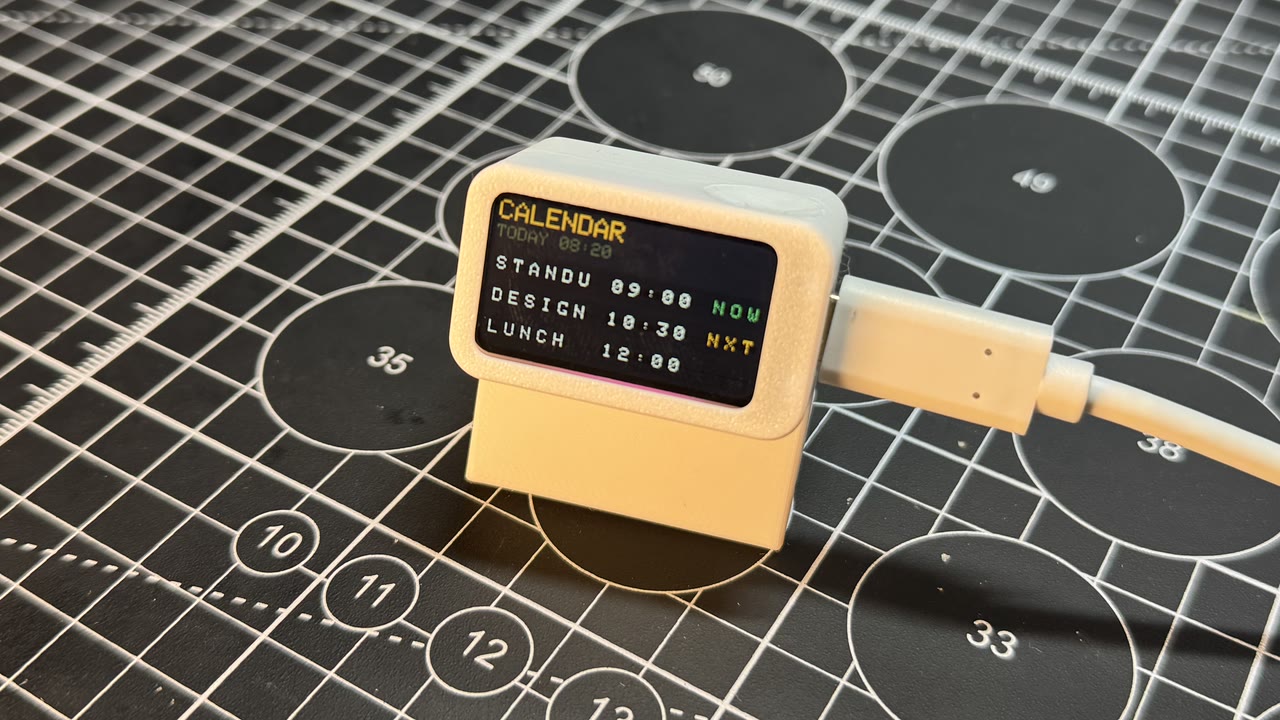
Desk Pal fortune 8-ball on Desk Pal puck (ESP32-S3).
Build it
1
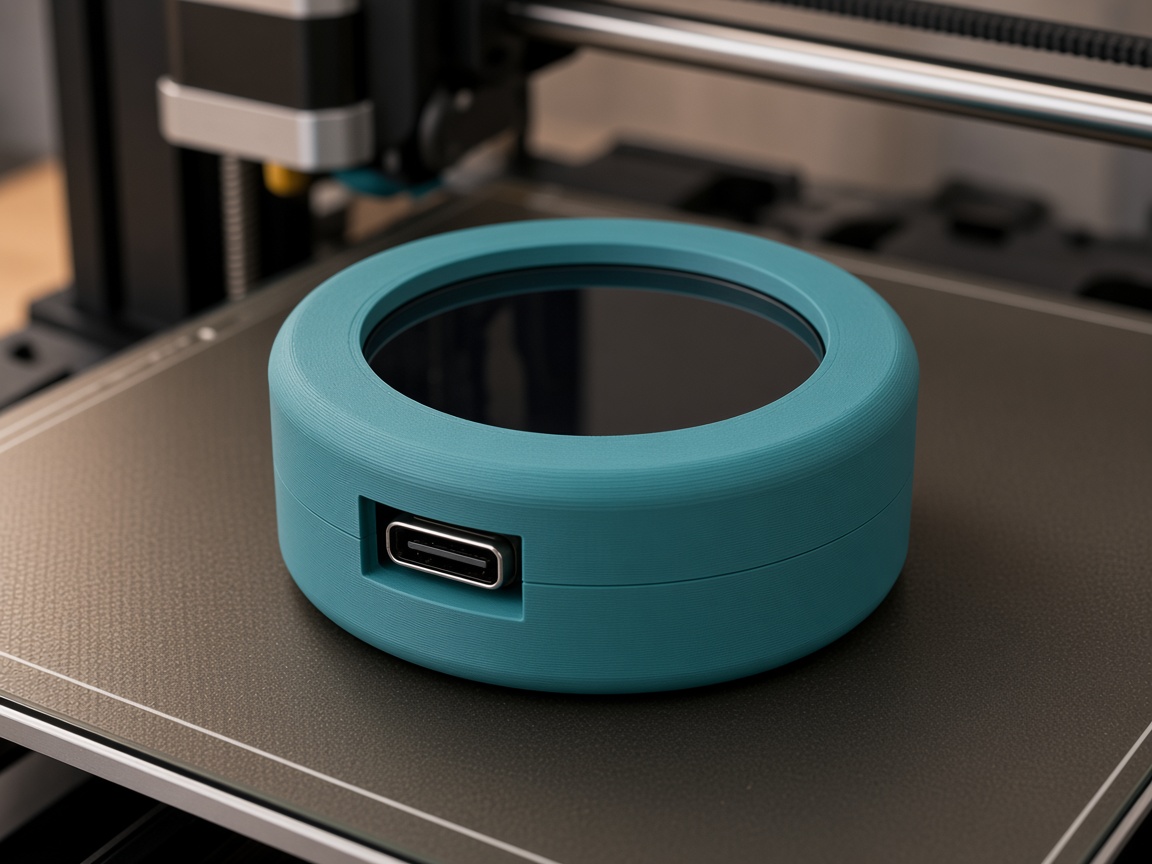
Print the shell
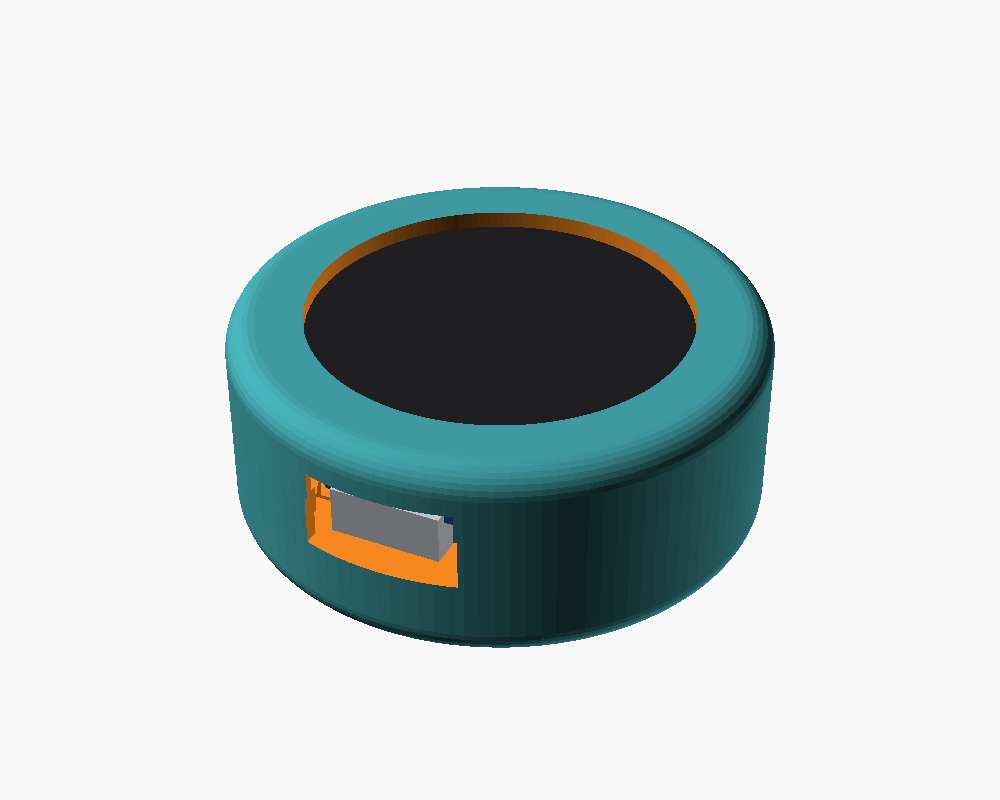
Black PLA, 0.16–0.2 mm, 3 walls. Snap the puck in with USB-C in the slot. The screen stays USB-down on purpose so the 8 always reads the same way on a desk.
2
Flash the puck
Flash means copy the program onto the chip. Easiest path: use the attached fortune-8ball.bin with the on-page Flash to board button (Chrome or Edge, USB-C). To change the code later: Arduino IDE → ESP32S3 Dev Module, OPI PSRAM, 16 MB flash, USB CDC On Boot — or unzip platformio.zip next to the .ino and run python3 -m platformio run -t upload. The TFT setup must include USE_HSPI_PORT or the round screen stays black.
3
Ask a question
Think a yes/no question. Shake, tap, or type shake on serial. Tap during the swirl to skip to the answer. Tap the fortune to put the 8 back.
Lesson 1 — Programs have moods (state machines)
This toy only ever does one of three things:
Idle — showing the 8, waiting.
Swirl — the blue triangle is spinning; the answer is already chosen but hidden.
Reveal — the two lines fade in.
That pattern is a state machine. You will see it in games, traffic lights, and vending machines. The code is not “a thousand ifs.” It is “what mood am I in, and what event moves me to the next mood?”
Lesson 2 — The motion sensor feels gravity and jerks
Inside the puck is an IMU (inertial measurement unit). The part we use is an accelerometer. It measures acceleration — including Earth’s gravity, which feels like a steady 1 g downward when the puck is still.
A shake is a sudden change on top of that 1 g. The firmware keeps a running “how wild is this?” number. Putting the puck on the desk is ignored. A real wrist flick crosses a threshold for a few milliseconds, and that counts as shake.
If shake does nothing, type shake on serial. That skips the sensor and proves the rest of the program works — classic debugging: split the problem.
Ignore fidgets, catch a flick
fortune-8ball.ino
// Think of these as the "how hard is hard enough?" knobs.
static const float SHAKE_ENTER = 2.35f;   // must get this wild
static const uint32_t SHAKE_ARM_MS = 90;  // and stay wild this long
static const uint32_t SHAKE_COOL_MS = 900; // then rest so one shake ≠ five
Lesson 3 — Answers are just a list
A fortune is two short strings (top line, bottom line) so they fit in the triangle. The program keeps them in an array — a numbered list. When you ask, it picks an index with random. Same idea as drawing a card from a deck: the deck does not change, only which card you show.
If you draw triangle, text, triangle, text straight onto a live screen, you see half-finished frames — flicker. This firmware draws into a sprite (a picture in memory) and then pushes the finished picture once. That is the same idea as drawing on paper under the desk, then slapping the paper on the wall.
Try this
Add your own fortune to the list (keep each line short) and reflash.
Type fortune on serial to skip the swirl — useful when filming.
Type status. If imu is down, shake will not work, but tap still will.
Talking to the board (serial)
Your computer can talk to the board over the same USB-C cable. That text chat is called serial. In Arduino IDE or PlatformIO, open the Serial Monitor at 115200 baud (that number is the speed — both sides must match).
Type a word, press Enter, and the board answers. Try help first. Then try status.
Commands for this project:tap · shake · fortune · status · help
Tip
If you see nothing, pick the right USB port, set 115200, and press the board’s RESET once. On a Mac the port often looks like /dev/cu.usbmodem….
Tip
The screen does not auto-rotate. That is on purpose so the 8 is always upright on a desk. Shake still works if you pick it up.
The complete program (reference)
Everything above taught the ideas. Below is the full sketch so you can search, copy, and tinker. It is long on purpose — that is a real program, not a toy snippet. Scroll inside the box. The downloadable .ino is the same file.
This sketch does not use Wi-Fi. There is no network name and no password in the file.