Music Play Pal

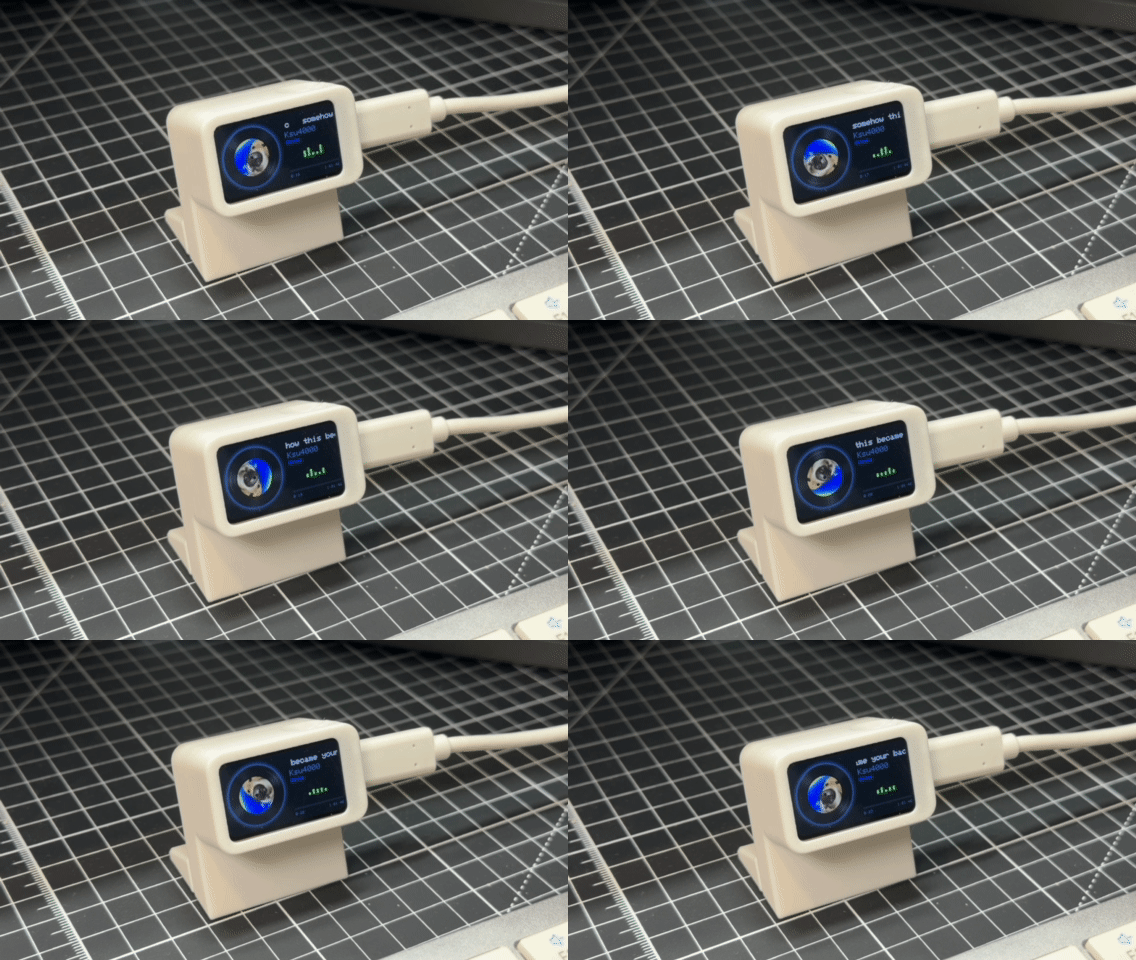
A tiny desk screen that shows what's playing on your PC: the song, the artist and the album cover spinning like a vinyl record. Press the button to pause or skip. One USB-C cable, no Wi-Fi, no coding.

Music Play Pal
DifficultyBeginner
Build time30 min
Est. cost$20
Parts4
Files5
Steps6

Things you'll need

QtyPartType
1
Waveshare ESP32-C6-LCD-1.47
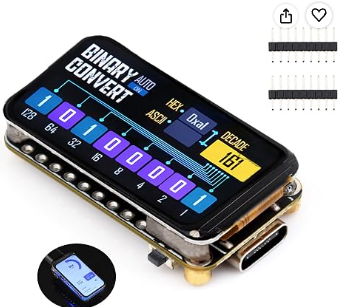
Waveshare ESP32-C6-LCD-1.47 1.47" 172×320 screen, ESP32-C6 and the BOOT button in one board Get the plain version without pin headers. The -M version has headers soldered on.
electronics
1
USB-C data cable Must carry data, not just charge. USB-A or USB-C on the PC end, whichever your PC has
electronics
1
Printed case (3 pieces) Base, cradle and front frame. STL in Files & downloads
printed
1
PLA filament About 20 g, any colour. PETG works too
consumable

Tools & software

1
NowPlaying.exe Free Windows 10/11 tray app. In Files & downloads
1
Chrome or Edge To flash the board once from the browser (needs Web Serial)

Files & downloads

What you're building

Music Play Pal sits next to your keyboard and shows what your PC is playing: the song title, the artist, and the album cover spinning like a little vinyl record. Press the button on the board to play/pause or skip.

How it works: a small Windows tray app (NowPlaying.exe) reads the current song from Windows' own media controls, the same info you see in the volume popup. It sends the title, artist and cover over the USB-C cable to the ESP32-C6 board. No Wi-Fi, no accounts, no coding.

Works with anything that shows up in that Windows media popup: Spotify, YouTube and other sites in your browser, Apple Music, VLC and more.

You'll need:

  • A Windows 10 or 11 PC (the app is Windows-only for now)
  • Chrome or Edge, to flash the board once
  • A 3D printer and about 20 g of PLA
Use a data cable

Tip

Use a USB-C cable that carries data. A lot of cables that come with gadgets only charge. With one of those the board lights up but never shows up on your PC, so neither the flasher nor the app can find it.

Build it

1

Print the case

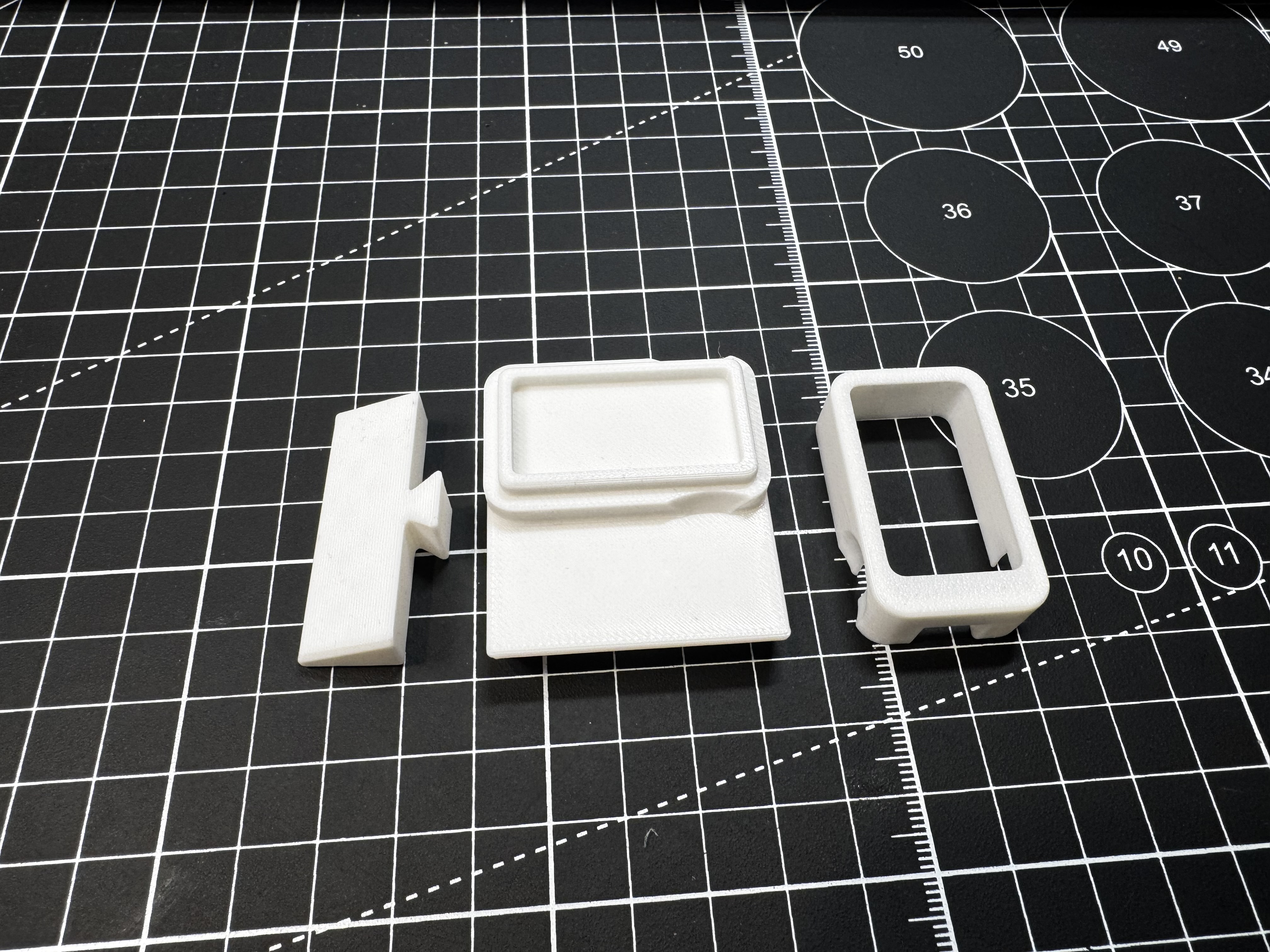
There are three pieces: the base (left in the photo), the cradle that holds the board (middle) and the front frame (right).

  • Material: PLA (PETG works too), about 20 g in total
  • Layer height: 0.2 mm
  • Infill: 15–20 %, 3 walls
  • Supports: none
  • Lay each piece flat on its biggest flat side. Your slicer's Lay on face / Place on face tool does it in one click.

If the frame is too tight around the board, sand the inside lightly or reprint it at 101 % in X and Y.

Print the case
2

Put it together

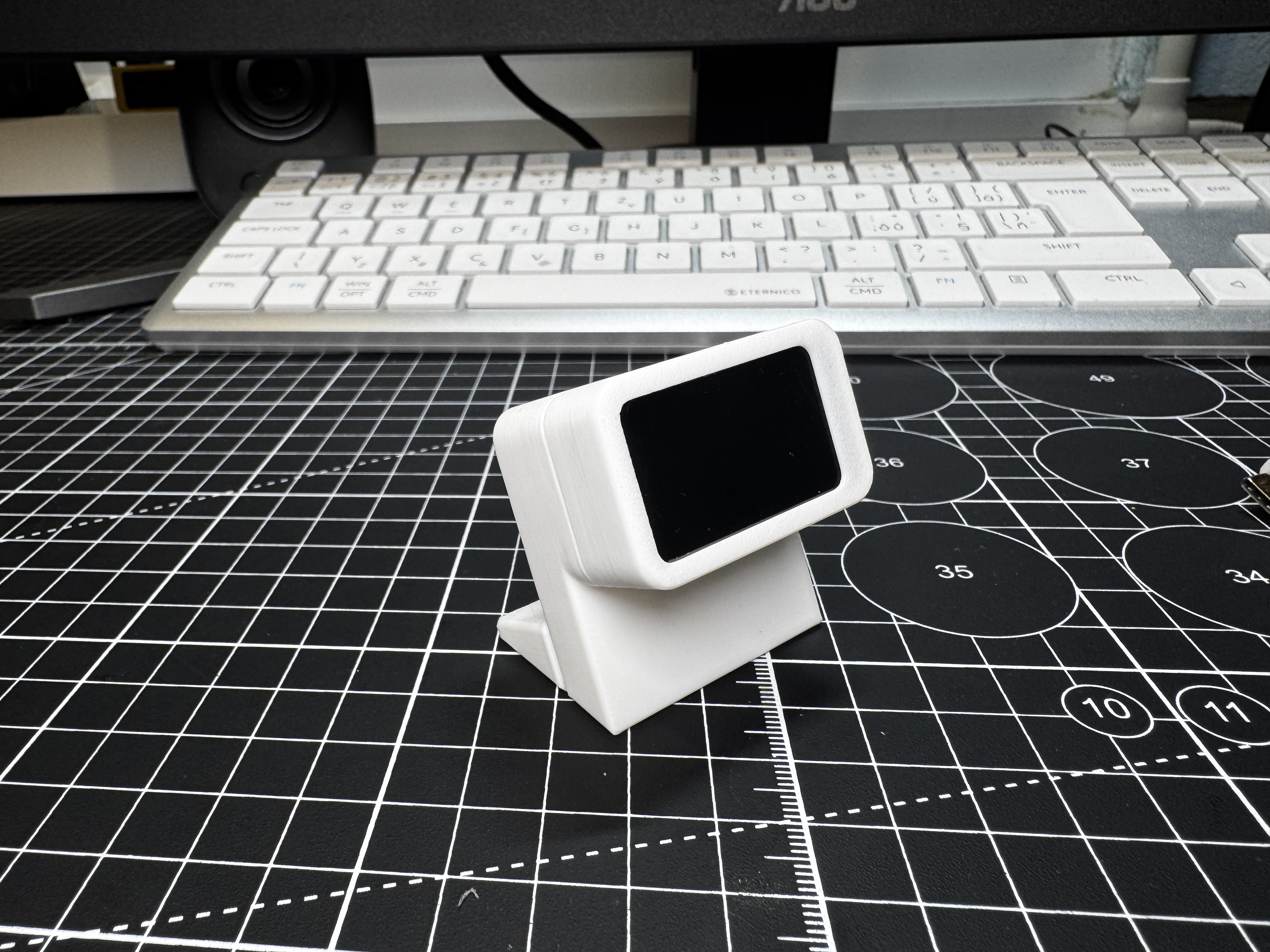
  1. Lay the board in the cradle with the screen facing out and the USB-C port lined up with the opening in the case.
  2. Press the front frame over the board until it sits flush.
  3. Fit the base onto the back of the cradle.

Make sure you can still press the BOOT button. It's your play/pause/skip button later.

Put it together
3

Flash the firmware (one time)

This takes about two minutes and you only do it once.

  1. Download now-playing-slab.bin from Files & downloads above.
  2. Plug the board into your PC with your data USB-C cable. If NowPlaying.exe is already running, quit it first (tray icon → Quit). Only one program can talk to the board at a time.
  3. In Chrome or Edge, open Espressif's web flasher: espressif.github.io/esptool-js
  4. Leave Baudrate at 921600 and click Connect. Pick the board's port in the popup and click Connect. It's called USB JTAG/serial debug unit or USB Serial Device (COM…). Not sure which one? Unplug the board and see which port disappears.
  5. The log should now say Chip is ESP32-C6. That means you're connected.
  6. Change Flash Address from 0x1000 to 0x0. This file is a full image (bootloader + app), so it has to start at zero. Leave Flash Mode, Frequency and Size as they are, and skip Erase Flash.
  7. Click Choose File, pick now-playing-slab.bin, then click Program. Wait until the progress bar is full. The board restarts by itself.
  8. Click Disconnect, or close the tab. The browser keeps the port open until you do, and the app can't reach the board while it's open.

The screen should now say Start the PC app and keep USB plugged in. That means the firmware is running.

Connect fails or no port shows up? Try another cable first. Still nothing: hold BOOT, tap RESET, let go of BOOT, then click Connect again.

Programming stops partway? Set Baudrate to 115200, then Connect and Program again.

Flash the firmware (one time)
4

Install the Windows app

  1. Download NowPlaying-windows.zip. If your browser warns that the file isn't commonly downloaded, choose Keep. Edge hides this under the … menu and may ask twice.
  2. Right-click the zip → Extract All.
  3. Move NowPlaying.exe somewhere it can stay, for example Documents\NowPlaying. It starts with Windows from that spot, so don't leave it in Downloads.
  4. Double-click NowPlaying.exe.
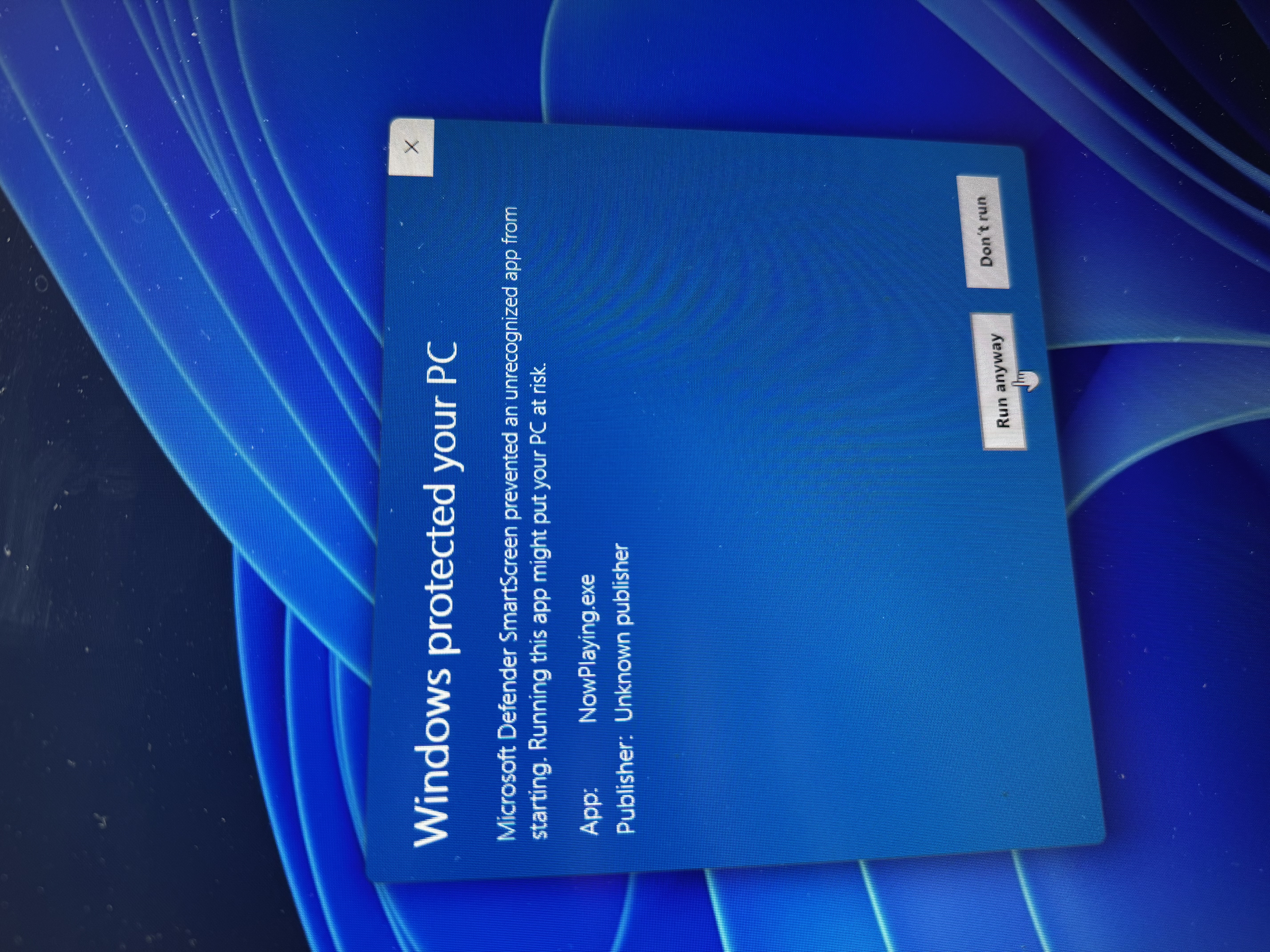
  5. Windows will probably show the blue Windows protected your PC box (pictured). It does that for apps from small makers that don't have a paid code-signing certificate. Click More info, then Run anyway.

No window opens. That's normal: the app runs in the system tray.

Install the Windows app
5

Check it's connected

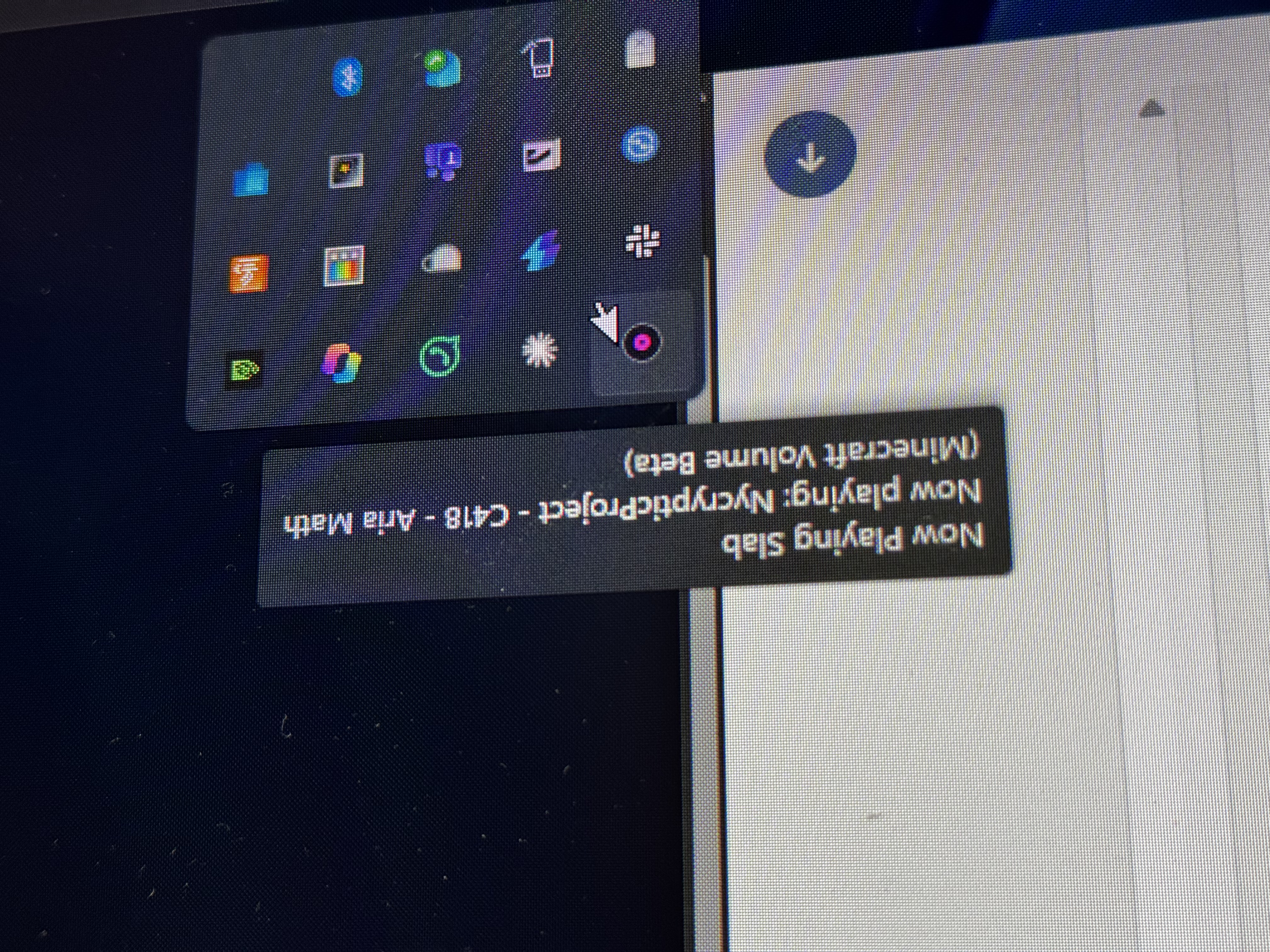
Click the ^ arrow next to the clock to find the little vinyl-record icon. Hover over it to see the song it's sending to the slab.

Right-click the icon for its menu:

  • Start with Windows: leave it ticked and the slab just works after every reboot
  • Open log: shows what the app is doing, handy if something's wrong
  • Quit

You never have to pick a COM port. The app finds the board by itself and reconnects if you unplug it.

Check it's connected
6

Press play

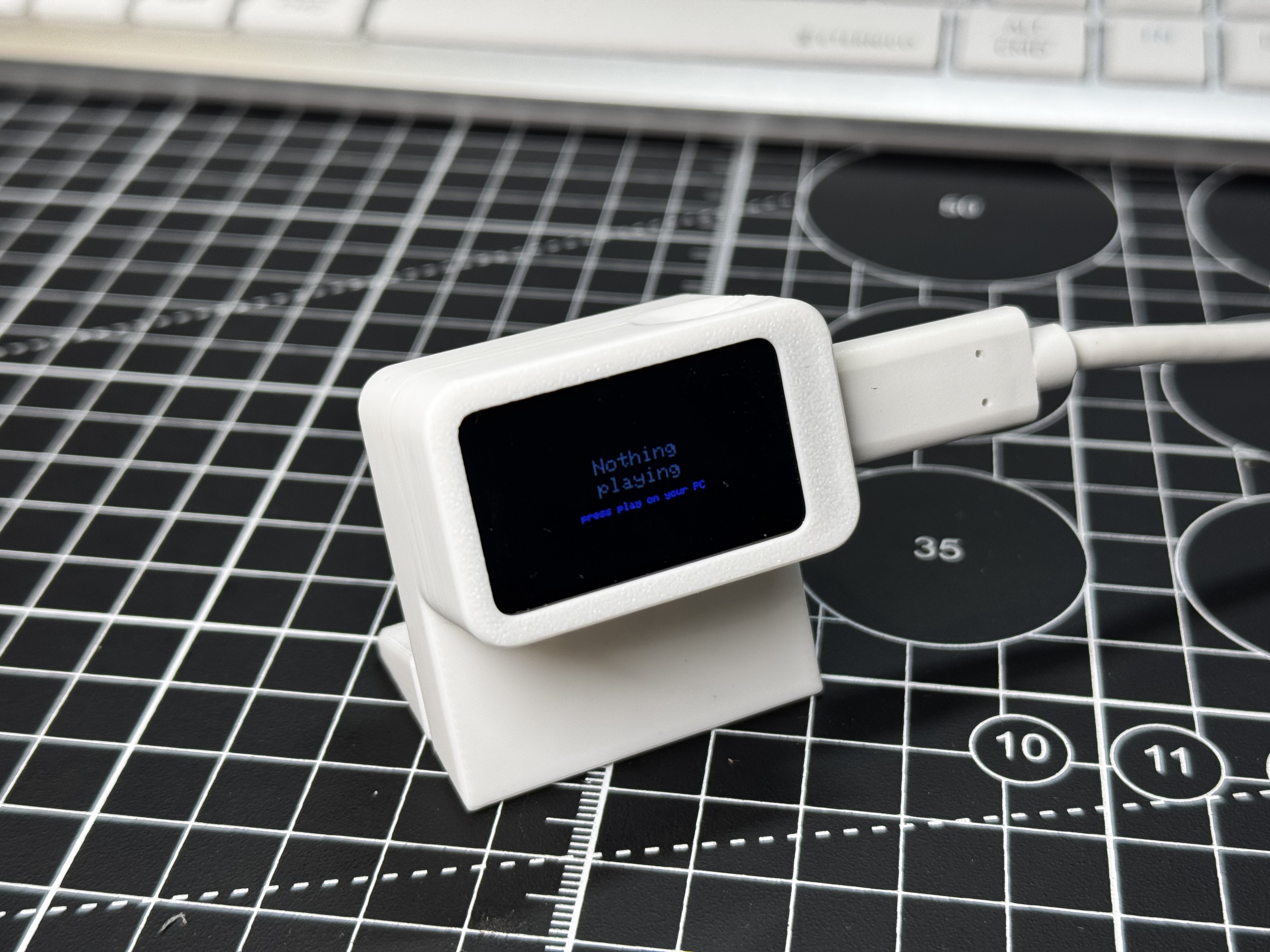
Play a song in Spotify, YouTube or any other player. Within a second or two the slab shows the title, the artist and the cover, spinning like a record. Until then it says Nothing playing.

The BOOT button on the board is your remote:

  • 1 click: play / pause
  • 2 clicks: next track
  • 3 clicks: previous track
  • Hold 1 s: rotate the screen (portrait / landscape)
  • Hold 2 s: switch between the spinning record and the animation

RESET just restarts the board.

Troubleshooting

The screen stays black after flashing. Press RESET or replug the cable. Still black? Flash again and check that Flash Address was 0x0, not 0x1000.

It says "Start the PC app and keep USB plugged in". The board is fine, but the app isn't connected. Check the tray icon is there, the flasher tab is disconnected or closed, and the cable goes straight into the PC.

It says "Nothing playing" while music is playing. Press a volume key on your keyboard. If your player doesn't appear in the Windows media popup, the app can't see it either.

The flasher says the port is busy, or the app can't find the board. Only one program can use the port at a time. Quit NowPlaying.exe before flashing. Before starting the app, disconnect or close the flasher tab, and close Arduino IDE or any serial monitor.

The log says the slab has older firmware. Flash the latest now-playing-slab.bin again (step 3).

Accented letters look plain. The screen font is plain ASCII, so Dvořák shows as Dvorak. That's expected.

Still stuck? Right-click the tray icon → Open log, and paste what it says in the comments.

For tinkerers: serial commands

The slab also takes text commands over USB. Quit NowPlaying.exe, open any serial monitor (Arduino IDE's Serial Monitor, PuTTY…) on the board's COM port at 115200 baud, and type:

  • help: list the commands
  • status: what the slab is showing right now
  • rotate: portrait / landscape
  • speed 4 up to speed 33: how fast the record spins, in rpm
  • style disc, style anim or style cover: spinning record, animation, or a plain square cover

Start the app again when you're done.

Licensed under CC0 1.0. Check with the author before commercial use.