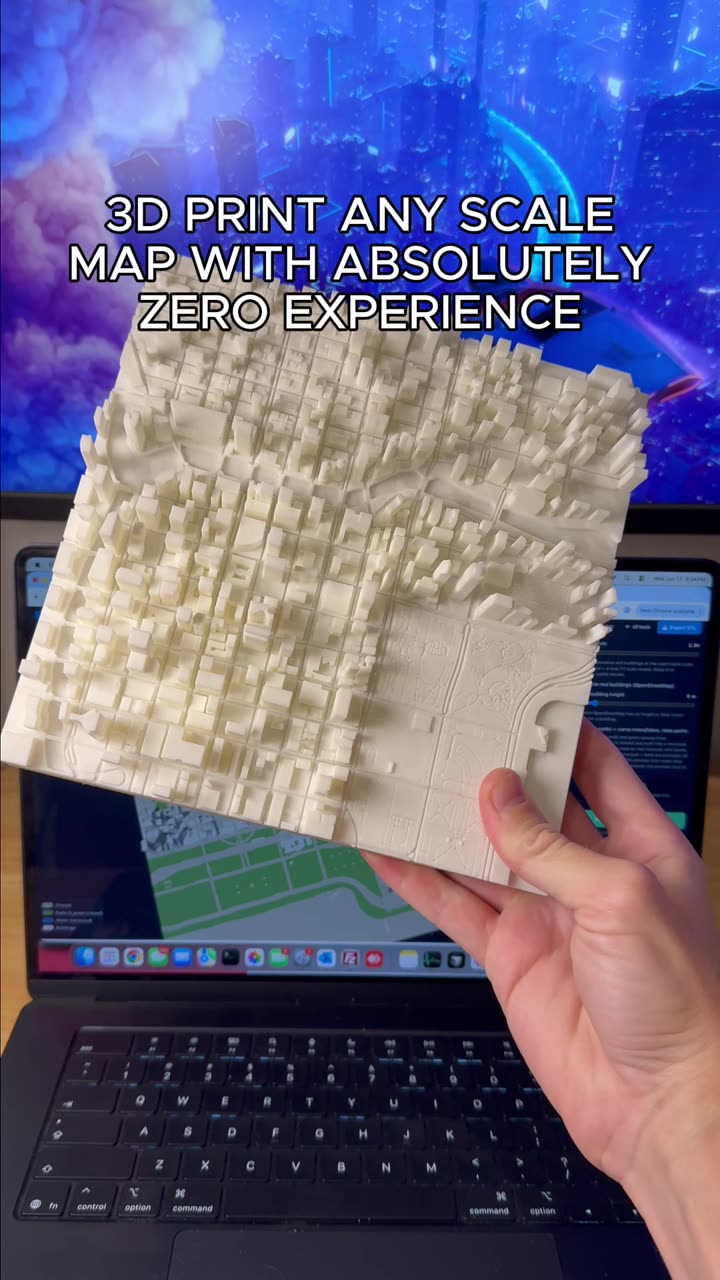
About this video
Turn Your Minecraft World Into a Real-Life 3D Printed Map
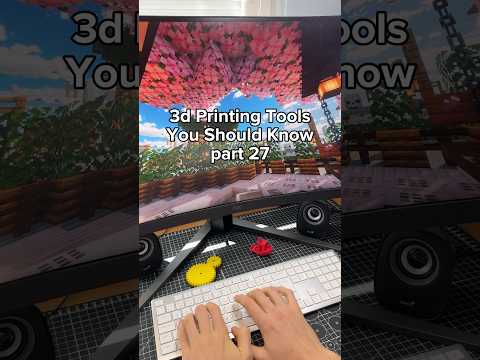
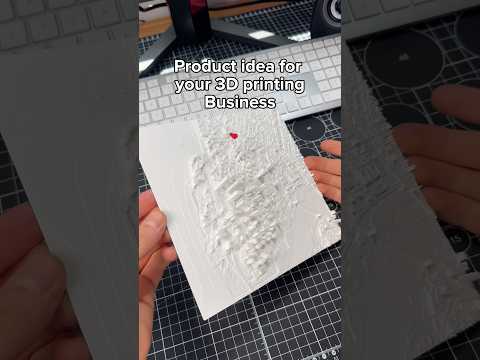
Have you ever spent hundreds of hours building the perfect Minecraft world and wished you could hold it in your hands? With the right 3D printing tools, you can. This guide covers how to use PrintPal's Minecraft map-to-3D-print converter to transform any Minecraft save file into a physical terrain model you can display, gift, or sell.
How the PrintPal Minecraft Map Tool Works
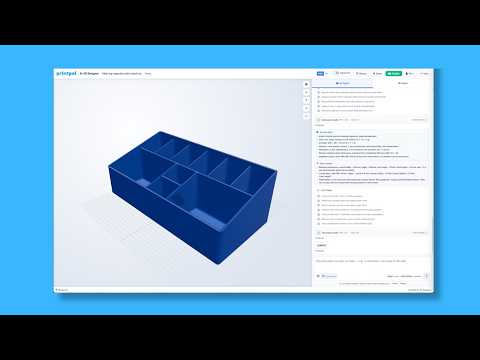
PrintPal offers a free browser-based workflow that takes the guesswork out of converting voxel data into printable geometry. The process is simple:
- Upload your Minecraft map file — Drop in your world save, schematic, or exported region directly from the PrintPal dashboard.
- Select your map region — Crop the area you want to print, whether it's a single biome, your base, or an entire continent-sized chunk.
- Choose your optimization settings — PrintPal automatically generates a 3D print optimized file with proper scaling, wall thickness, and support considerations baked in.
- Export to a multicolor printer — If you own a Bambu Lab, Prusa XL, or other multi-material machine, you can export with color data so biomes, water, and foliage print in vivid detail.
The output is a watertight STL or 3MF file ready to slice in your favorite slicer.
Why 3D Printing a Minecraft Map Is Worth It
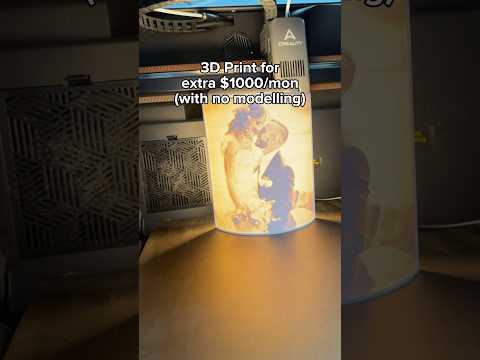
- Custom gifts — Print your friend's survival world as a birthday or wedding present.
- Server trophies — Reward competitive players with a miniature of the map they fought over.
- Memorabilia — Preserve a beloved world before a reset or version update.
- Educational models — Teachers use terrain prints to teach geography, topography, and erosion concepts.
Tips for the Best Print Results
- Scale appropriately — A 200×200 block region prints cleanly on a standard 220×220mm bed. Larger regions may need to be split into tiles.
- Use matte or wood-fill filament — PLA in earthy tones (tan, green, gray) highlights elevation changes beautifully.
- Add a simple base plate — PrintPal can generate one, or model a quick frame in Fusion 360 or Tinkercad.
- Consider layer height — 0.16mm or 0.2mm gives smooth terrain without exploding print time.
- Post-process with light sanding and filler primer for display-quality finishes.
Frequently Asked Questions
What Minecraft map formats does PrintPal support?
Most standard world saves and exported region files work. Schematics from tools like WorldEdit are also commonly supported.
Can I print a full Minecraft world?
Technically yes, but the file size becomes enormous. For practical prints, stick to curated regions between 100×100 and 500×500 blocks.
Do I need a multicolor 3D printer?
No. Single-color prints look great when you choose a filament that complements the terrain. Multicolor just adds an extra wow factor.
Is the PrintPal tool really free?
Yes — you can upload, preview, and generate a basic 3D print optimized file at no cost. Premium features may apply for high-resolution exports.
Final Thoughts
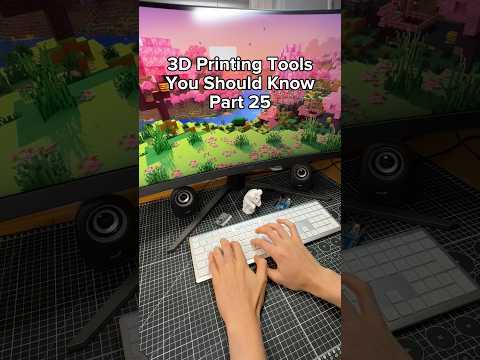
This is Part 11 of our "3D Printing tools you should know" series, and the Minecraft map converter is one of the most fun utilities in the PrintPal toolbox. Whether you're a gamer, a maker, or just looking for a unique print project, it's a fast way to bridge digital creativity and physical craftsmanship. Try it out — link in bio.