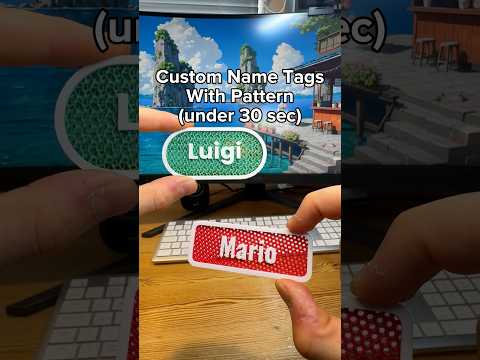
About this video
What Is PrintPal's Full Color AI Generator?
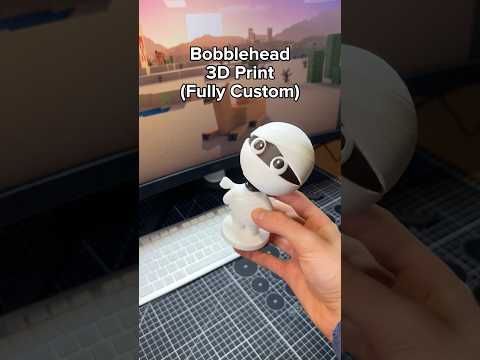
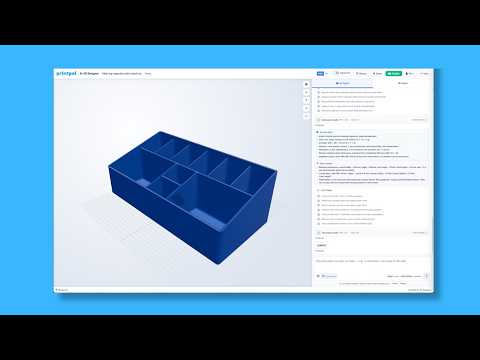
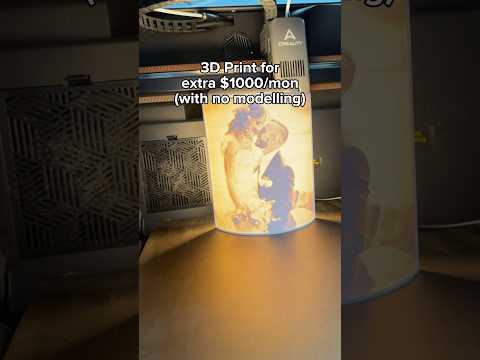
PrintPal's Generate AI tool lets anyone create a fully colored, print-ready 3D model from a single photograph. Instead of learning CAD software or hunting for models online, you upload a picture and the platform handles the geometry, coloring, and export in one workflow. It is one of the fastest ways to go from a 2D idea to a physical object.
How to Generate a Full Color 3D Print
- Open PrintPal and click Generate AI.
- Select Full Color Mode from the available options.
- Upload any picture — a pet, a logo, a character, or a product shot.
- Wait for the AI to convert the image into a textured 3D mesh.
- When exporting, choose how many colors to keep on the model so it matches your printer setup (single extruder, multi-material, or filament palette).
- Download the file and send it straight to your slicer.
Why This Matters for 3D Printing
Traditional full color prints usually require multi-jet fusion, binder jetting, or expensive Bambu Lab AMS / Prusa MMU setups. PrintPal's generator simplifies the pipeline by letting you reduce the color count at export time, so even a basic FDM printer can produce recognizable, colorful results with a simple filament swap or palette of PLA colors.
Tips for Better Results
- Use a high-resolution, well-lit photo with a clear subject.
- Pick images with strong contrast between subject and background for cleaner geometry.
- Start with a higher color count to see the full detail, then reduce if your printer is limited.
- Pair the output with matte PLA or PETG for the most accurate color reproduction.
Frequently Asked Questions
Do I need design experience?
No. The AI handles modeling, texturing, and coloring from a single uploaded image.
Which printers support full color 3D prints?
Color output works on any FDM printer when you reduce the palette, while resin and multi-material printers can take advantage of higher color counts.
Can I use any image?
Yes — portraits, logos, pets, and product photos all work. Clearer subjects produce cleaner models.
Try it yourself using the link in the PrintPal bio.