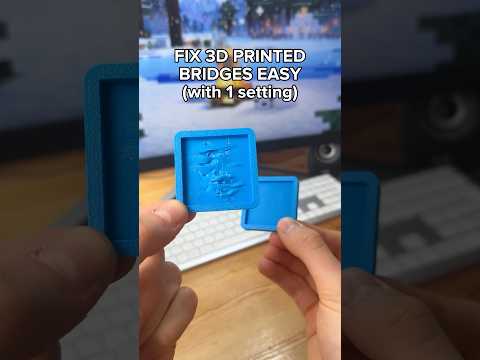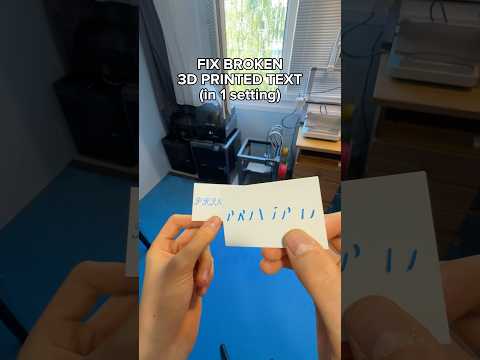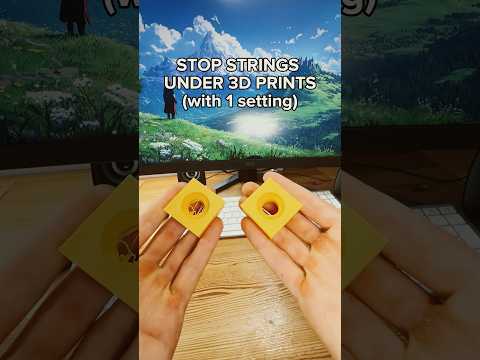
About this video
What Is "By Object" Print Sequence?
When you slice a 3D model with multiple separate parts, your slicer needs to decide how to handle them. The "By Object" setting tells your slicer to complete all parts of one object before moving to the next.
This matters because many multi-part prints share build plate space. If parts are tall or have delicate features, a printhead traveling between objects can easily knock them off or damage them.
Which Slicers Support This Setting?
- Cura — Settings > Build Plate > Print Sequence
- PrusaSlicer — Print Settings > Multiple Printers > Print Sequence
- Bambu Studio — Process > Advanced > Print Sequence
- OrcaSlicer — Same as PrusaSlicer
How Does It Save Time?
Print sequences vary:
- All at Once — Prints all objects layer by layer together (often impossible if parts share the same space)
- One at a Time — Prints the entire first object, then moves to the next
- By Object — Prints one complete object (all layers), then moves to the next
By finishing each object before starting the next, you avoid collisions and failed prints. If you used "All at Once" and parts intersected, you'd restart the entire job.
Tips for Positioning Parts
- Check nozzle clearance — Move parts until borders don't overlap, even at full height
- Use slicer preview — Watch travel paths to catch potential collisions before printing
- Consider printer kinematics — CoreXY machines may need parts kept away from center
- Group wisely — Keep smaller parts together to minimize travel distance
Related Settings to Explore
- Ooze Prevention — Helps reduce stringing between objects
- Wipe Between Objects — Cleans nozzle between parts
- Travel Speed — Faster travel saves time but may cause ringing
FAQ
Does By Object make prints faster?
Not necessarily. It reduces failed prints and allows more complex multi-part layouts, but print time stays similar.
Can I use this for all materials?
Yes, it works with PLA, PETG, ABS, TPU, and resins. Material-specific settings (temps, cooling) stay the same.
What if parts intersect when positioned?
The slicer warns you. Move parts until borders no longer overlap and re-slice.