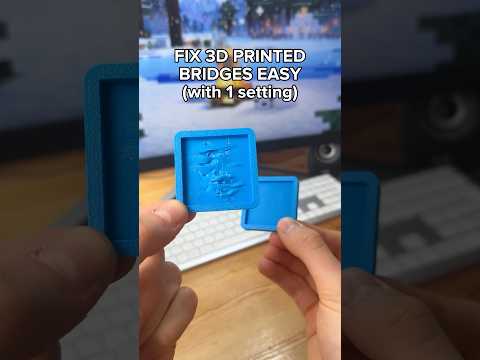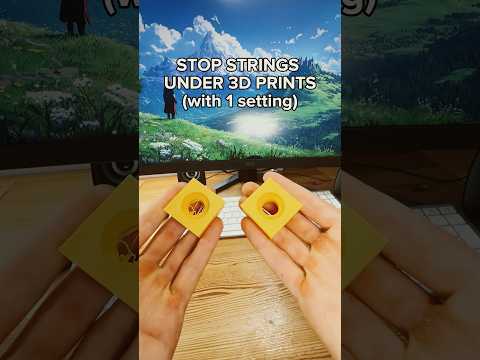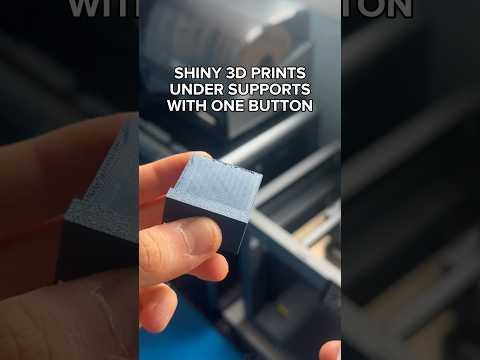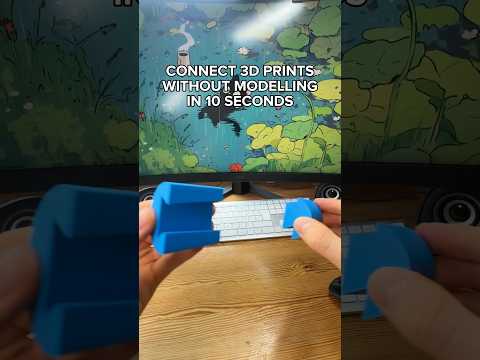
About this video
Why Default Slicer Settings Often Fail
Most 3D printers ship with slicer profiles that prioritize speed over reliability. The default infill pattern, seam placement, and wall generator are the three biggest culprits behind knocked-over prints, visible zits, and missing text on small details. Tweaking them takes less than a minute and dramatically improves print quality.
1. Switch the Infill Pattern Away from Grid
The classic grid infill lays every line on the same layer in a crisscross layout, so the nozzle crosses over its own freshly extruded paths. That overlap is a common cause of prints being knocked off the bed mid-print, especially on tall or thin parts.
Better infill pattern alternatives:
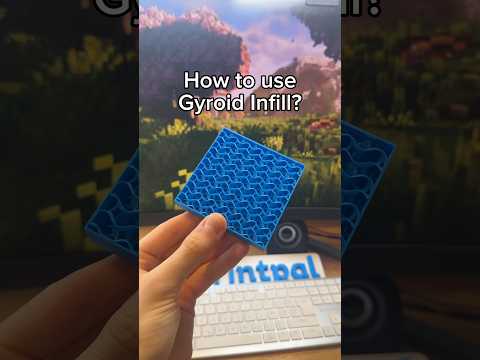
- Gyroid – best for strong, isotropic parts; great for functional prints that bear load from any direction.
- Adaptive Cubic – varies density across the model to save filament where strength is not critical.
- Lightning – ultra-fast infill that uses zigzag paths; ideal for visual or display models where speed matters more than strength.
2. Hide the Seam with Scarf + Contour
A visible seam (the small vertical line where each layer starts and ends) ruins the look of otherwise clean prints. To make it nearly invisible:
- Enable Scarf Seam in your slicer (works in PrusaSlicer, SuperSlicer, and recent OrcaSlicer builds).
- Turn on Contour so the seam is smoothed into the outer wall.
The result is a print that looks molded rather than layered, with no harsh start/stop line down the side.
3. Use the Arachne Wall Generator
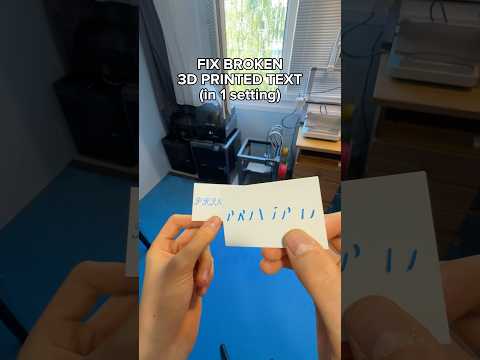
If small text, thin gaps, or fine details are missing from your print, the classic wall generator is likely the cause. It uses a fixed extrusion width that cannot adapt to geometry. Switching to Arachne lets the slicer dynamically adjust wall width around features, so letters and narrow gaps actually get printed.
Quick FAQ
Do these settings work in every slicer?
Scarf seam and Arachne are supported in PrusaSlicer, SuperSlicer, and OrcaSlicer. Infill pattern options are universal.
Will gyroid infill slow my print?
Slightly, but the strength gain is worth it for functional parts. Use lightning infill for display models to save time.
Is Arachne always better?
For most models with fine detail, yes. For very simple geometric parts, the classic generator can be marginally faster.