About this video
Why 3D Prints Have a Visible Seam Line
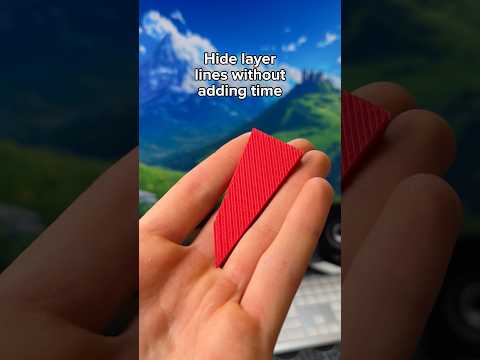
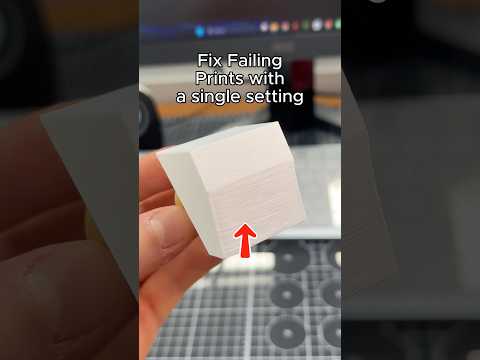
Every FDM 3D print starts and stops each layer somewhere on the model, and that start-and-stop point leaves a small vertical mark called a seam. On round or curved objects, the seam is especially noticeable and can ruin an otherwise clean surface finish. The good news is that modern slicers ship with a feature that can virtually erase it.
What Is Scarf Seam?
Scarf seam is a slicer setting that blends the start of a new loop into the end of the previous loop, instead of dropping the nozzle down at a sharp point. The result is a smooth, tapered transition that is much harder to see — especially after sanding or painting.
How to Enable Scarf Seam (Step-by-Step)
- Open your slicer software (Cura, PrusaSlicer, OrcaSlicer, Bambu Studio, etc.).
- Navigate to the Quality settings panel.
- Scroll down until you find Seam Settings or Seam.
- Locate the Override Scarf Seam option and toggle it On.
- Change the scarf seam type from None to Contour.
- Slice and print your model as usual.
Tips for the Best Results
- Use Contour mode for vase-mode spirals and tall cylinders — it hides seams almost completely.
- Pair scarf seam with seam alignment set to "Sharpest Corner" or "Random" depending on your geometry.
- A 0.4 mm nozzle at 0.2 mm layer height is a good baseline for testing.
- Print in PLA or PETG first to dial in the look before committing to more expensive materials.
- Light post-processing (sanding with 220 grit) will make the seam virtually invisible.
FAQ
Does scarf seam increase print time?
Slightly. The contour overlap adds a few seconds per layer, but the visual improvement is well worth it.
Will it work on every model?
It works best on closed, curved geometries. Flat faces and sharp corners may still show a faint line.
Is scarf seam supported in every slicer?
Most modern slicers (Cura 5+, PrusaSlicer, OrcaSlicer, Bambu Studio) include it. Older versions may need an update.