About this video
Skip the Design Step: Generate a Printable QR Code Stand Instantly
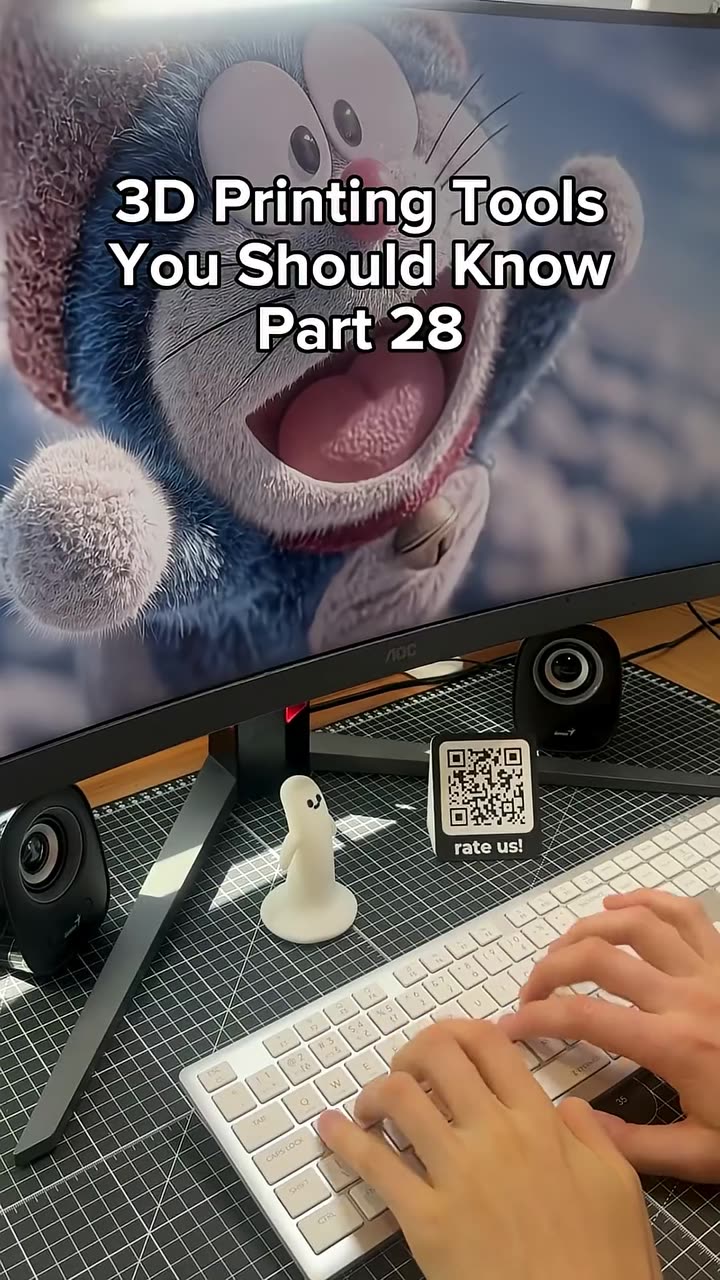
If you need a physical QR code for your shop, café table, workshop, or product packaging, you no longer have to open CAD software. The PrintPal QR code generator is one of the most popular 3D printing tools that skip designing, letting makers go from idea to STL in under a minute.
How the PrintPal QR Code Generator Works
The tool lives inside the PrintPal Tools hub, so there is nothing to install and no account wall to climb over.
- Open PrintPal and click Tools.
- Choose QR Code Generator.
- Pick a source type — most users select Link (any URL) or Wi-Fi (auto-fills your network credentials).
- Adjust the physical size slider to match your printer's bed and the viewing distance.
- Choose an output style:
- Stand – a self-supporting angled block that sits on a counter or shelf.
- Hanging hole – a flat tile with a keyring-friendly loop for lanyards, plant hangers, or signage.
- Text label – add a custom caption beneath or above the code for branding or instructions.
- Click Download to grab an STL file ready to slice in Cura, PrusaSlicer, or Bambu Studio.
Why 3D Print Your Own QR Code Stand?
- No minimum order quantity – perfect for one-off prototypes, weddings, or a single business card.
- Custom branding – match the stand's color to your shop, or pause the print to swap in a different filament for the text portion.
- Durable materials – PETG and ASA hold up outdoors far better than paper stickers.
- Privacy control – your Wi-Fi password or short link never leaves your browser or printer.
Print Settings Tips for a Clean Scan
A QR code is only useful if phones can read it. A few quick tweaks save you from reprinting:
- Layer height: 0.16 mm or finer keeps the square modules crisp.
- Infill: 20–30 % is plenty for a stand that won't be dropped.
- Top/bottom layers: Use at least 5 solid top layers so the code is a single uninterrupted surface.
- Color contrast: Print the code in dark filament on a light base (or pause at layer and swap). Phones struggle with low-contrast codes.
- Orientation: Flat on the bed for hanging tiles, angled stand for counters. The generator handles the geometry for you.
Common Uses
- Restaurants and cafés: Menu links, payment URLs, or social handles on every table.
- Airbnb and rentals: Wi-Fi access for guests without posting the password.
- Workshops and makerspaces: Link to build instructions, inventory lists, or contact forms.
- Events: Wedding RSVP pages, conference check-ins, scavenger hunts.
- Plants and gifts: A hanging tile with care instructions for that hard-to-keep-alive monstera.
FAQ
Do I need to know CAD to use the PrintPal QR code generator?
No. You pick a template, paste your link, and the tool outputs a ready-to-print STL.
What file format do I get?
STL is the default, which works with virtually every slicer and FDM 3D printer.
Can I generate a Wi-Fi QR code so guests auto-connect?
Yes. Choose the Wi-Fi option, enter your SSID and password, and compatible phones will join the network after a single tap.
Will the printed code actually scan?
When printed with the tips above (fine layer height, dark-on-light contrast, clean top surface), the code scans reliably with the default camera app on iOS and Android.
Is the tool free?
Yes, it is part of the free PrintPal Tools suite alongside other generators like lithophane and calibration models.
Try It Yourself
Head to PrintPal, open Tools, and try the QR code generator with a link to your favorite playlist, portfolio, or shop. It is one of the fastest ways to put a 3D printer to work without touching a CAD file.