About this video
What is a 3D Print Clicker?
A 3D print clicker is a tactile mechanism that adds an interactive, satisfying snap to your prints. Whether you're creating fidget toys, stress-relief gadgets, or interactive art pieces, the clicker element transforms ordinary 3D prints into engaging, sensory experiences.
Tools and Materials Needed
To add a clicker to your 3D print, you'll need:
- PrintPal Fidget Maker tool (free, available at PrintPal.io)
- 3D model file (STL or OBJ format)
- MX mechanical switches (approximately 30 cents each, widely available online)
- 3D printer with standard settings
- Filament of your choice (PLA, PETG, or ABS recommended)
Step-by-Step Process
- Navigate to PrintPal.io and open the Fidget Maker tool
- Import your 3D model by uploading your STL or OBJ file
- Select your clicker type — the Box Shaped Clicker is a popular choice for its clean design and satisfying feedback
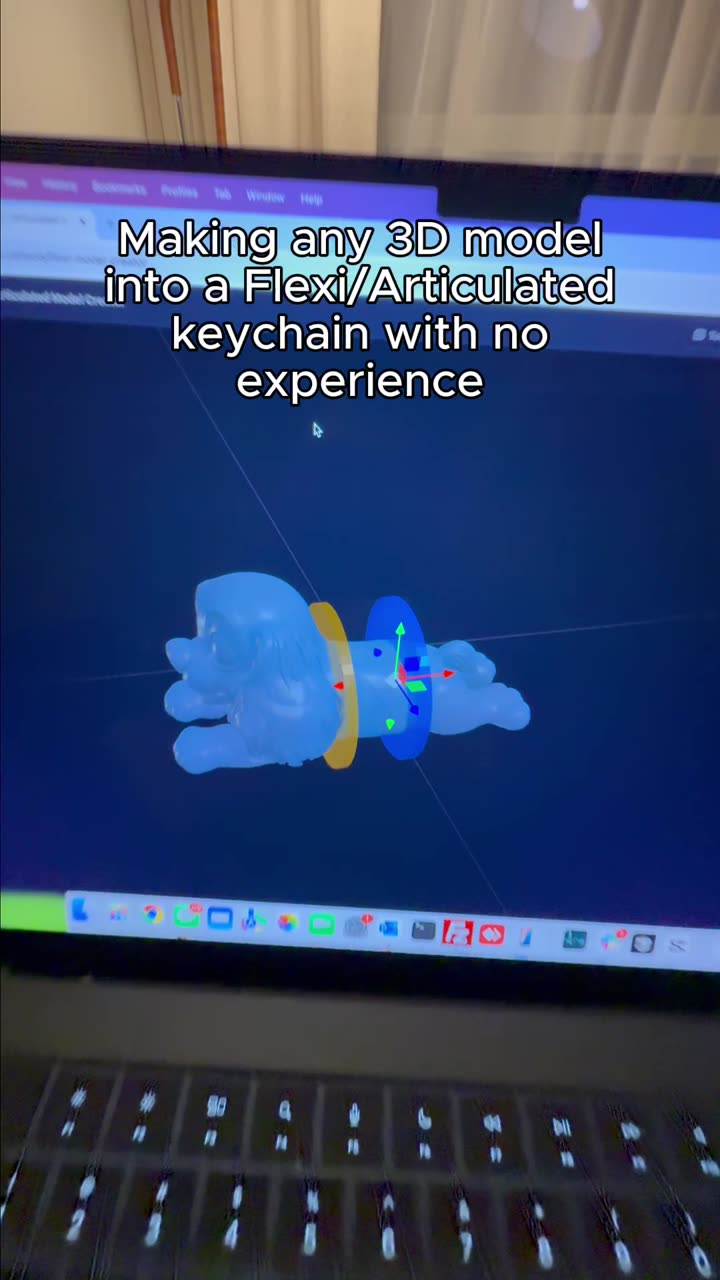
- Position the clicker exactly where you want it to cut through your model
- Export the modified file and prepare it for slicing
- Print your model using standard settings for your chosen material
- Snap in MX switches once printing is complete
Best Clicker Types for Your Prints
PrintPal's Fidget Maker offers multiple clicker styles to suit different projects:
- Box Shaped Clicker — Clean edges, consistent click, ideal for most applications
- Round Clicker — Softer feel, good for fidget toys
- Custom shapes — Available for advanced users
Why MX Switches?
MX mechanical switches are the industry standard for keyboard keycaps and work perfectly for 3D printed clickers. They're affordable, durable, and provide that satisfying tactile bump users expect. You can purchase them in bulk online for about 30 cents each, making this a cost-effective project.
Tips for Best Results
- Ensure your model walls are thick enough to accommodate the switch housing
- Test print the clicker area separately before committing to a full print
- Consider using contrasting filament colors for the clicker mechanism
- Sand and finish the printed area for smoother operation
Frequently Asked Questions
Can I add multiple clickers to one print?
Yes, the Fidget Maker tool allows you to place multiple clickers on a single model.
What filament works best?
PLA is easiest to print and provides good click feedback. PETG offers more durability for frequently used items.
Do I need support material?
Usually no, but it depends on your model's geometry and orientation.