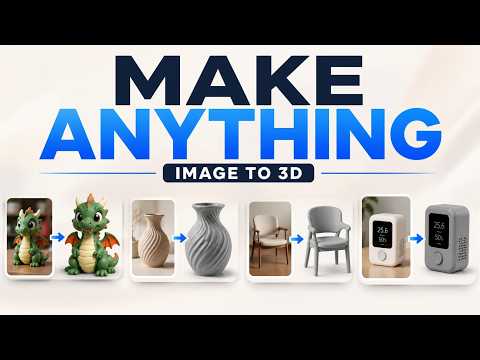
About this video
Turn Plain English into Printable CAD
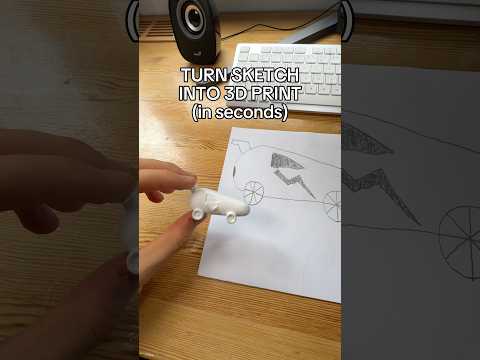
The PrintPal CAD Agent is a text-to-CAD tool that converts a simple sentence into real, printable geometry. Instead of learning a modeling package first, you describe the part you want — say, a 60×40 mounting plate with M3 counterbored holes — and the agent commits to units and dimensions, lays out a checklist, then generates OpenSCAD code and renders the model right in your browser. You can go from a written prompt to an exported STL in roughly two minutes.
Two Ways to Model
PrintPal gives you flexibility in how you work, with the AI Agent available in either mode:
- Build mode – a visual workspace where you click and drag shapes in 3D.
- Code mode – the full OpenSCAD editor for parametric, script-based modeling.
- AI Agent – sits on the right and drives changes in whichever mode you prefer.
Tips for Better Results
The golden rule is to be specific. Vague prompts produce vague parts, so feed the agent real numbers.
- Give exact dimensions and tolerances (e.g. hole diameter, wall thickness).
- Iterate with plain requests like "make the holes 4 mm, add fillets" — the agent shows exactly what changed.
- Type the @ symbol to reference a specific feature, parameter, or hardware part by name.
- Use Auto-iterate so the agent screenshots its own model and self-corrects.
- Drag in a reference image; labeled engineering drawings give the best results.
Exporting Your Model
When the part looks right, open File → Export and save as STL or 3MF for slicing and printing.
FAQ
Do I need an account? Yes. You must be signed in because each AI turn uses a few credits.
What units does it use? The agent assumes millimeters and FDM-friendly defaults.
Can I trust the output as-is? Always verify before printing. The generated CAD is a strong starting point, not a guaranteed-correct final design — check dimensions, hole placement, and tolerances yourself.
Which workflow is fastest? Describe, refine, export — let the agent draft the geometry, refine with natural-language tweaks, then export STL or 3MF.