Multicolor 3D printing: every way to print in color, compared
Multicolor 3D printing puts more than one filament color into a single print. You can do it for free on any printer by swapping filament at a chosen layer, automate it with a multi-material feeder such as an AMS, MMU or CFS, or give every color its own nozzle with a toolchanger.
- Colors change with height (signs, logos, keychains)? Add a filament change or pause at that layer in your slicer. It works on any printer and costs nothing.
- Colors share a layer (figurines, painted details)? You need a feeder (AMS, MMU3, CFS, ACE and similar) or a multi-nozzle printer such as a toolchanger.
- Single-nozzle feeders purge on every change. Flush into infill, supports or a spare object, and orient parts so fewer colors share each layer.
- Prepare the model as a 3MF with painted regions or one part per color, then compare the slicer's filament-change count and purge grams before you print.
Every multicolor 3D printing method compared
There are seven practical ways to get color into a print. They differ in two things: whether colors can share a layer, and how much plastic each change throws away.
| Method | Examples | Colors in one layer | Waste per change | Time per change | Best for |
|---|---|---|---|---|---|
| Filament change at layer (M600 or pause) | Any FDM printer | 1 (color changes by height) | Tiny: a short purge | A minute or two of your time | Signs, logos, keychains, coasters |
| Single-nozzle feeder | Bambu Lab AMS family, Prusa MMU3, Creality CFS, Anycubic ACE, Elegoo CANVAS, Qidi Box | 4–5 per unit; 16 or more when units are chained | High: the nozzle is flushed every time | Roughly 30–90 s | Figurines, mixed-color parts, auto-refill |
| Dual nozzle, one toolhead | Bambu Lab H2D | 2 nozzles, each can be fed by feeders | Low between nozzles; normal within one nozzle | Seconds between nozzles | Model plus support material, two-material parts |
| IDEX (independent dual extruders) | Printers with two separate carriages | 2 | Low: priming and ooze only | Seconds | Two materials, mirror and duplicate printing |
| Toolchanger | Prusa XL (up to 5 heads), Prusa CORE One INDX (up to 8 tools), Snapmaker U1 (4 heads), Bambu Lab H2C (Vortek hotend swapping) | 4–8 | Very low: a fraction of a gram | About 5–15 s | Frequent changes, mixed engineering materials |
| Filament painting (HueForge style) | Any printer, manual or automatic swaps | 1, blended optically | Tiny | A handful of swaps per print | Portraits, image panels, wall art |
| Paint after printing | Any FDM or resin print | Unlimited | None | Hours of handwork | Miniatures, cosplay, display pieces |
The examples are a snapshot of October 2026. The physics won't change: one shared nozzle means purging, separate nozzles mean almost none.
You want white letters on a black sign, and you own a single-nozzle printer with no feeder. What's the cheapest way to print it in two colors?
The colors change by height (base, then raised letters), so one filament change at that layer does the whole job for free. A feeder only pays off when colors share a layer.
How to change filament at a layer (M600 or pause)
A filament change at layer is the oldest multicolor trick and still the best value. The printer stops at your chosen layer, parks, waits for a new spool, then carries on.
- Slice the model and open the preview. Drag the layer slider to the first layer that should be the new color.
- PrusaSlicer: click the orange + on the slider to add a color change (M600), or right-click for a pause (M601) or custom G-code.
- Bambu Studio and OrcaSlicer: right-click the + on the layer slider and add a pause or a color/filament change.
- Cura: open Extensions → Post Processing → Modify G-Code and add the Filament Change or Pause at height script with the layer number.
- Swap the spool when the printer stops. Purge until the new color runs clean, wipe the nozzle, then resume.
PrusaSlicer will even offer to add the changes for you when it detects a sign- or logo-shaped model. Stick to one material family (PLA with PLA, PETG with PETG), because mixed plastics often don't bond to each other.
Check that your firmware understands M600. Prusa and most Marlin printers handle it natively (Marlin needs its advanced pause feature enabled). Klipper has no built-in M600, so add a small macro that calls its PAUSE command, or use a pause instead.
[pause_resume]

[gcode_macro M600]
description: Filament change (pause and park)
gcode:
    PAUSE
AMS vs MMU vs CFS: how single-nozzle feeders work
A single-nozzle feeder holds several spools and pushes the right one into one hotend. The AMS family, MMU3, CFS, ACE, CANVAS and Qidi Box all repeat the same routine on every change:
- Cut and retract. The old filament is cut and pulled back to the feeder.
- Load and flush. The new filament is extruded until no old color remains. This purge is the waste piling up behind the printer.
- Wipe and prime. The nozzle is wiped, then primes on a prime tower so the part gets full flow.
So choosing one is mostly choosing a printer brand. What actually differs:
- Slots and chaining. Most units hold four spools (the MMU3 handles five). Bambu Lab's X1 and P1 series accept up to four AMS units for 16 colors, and the H2D supports up to 24 slots by mixing AMS 2 Pro and single-spool AMS HT units. Creality's CFS also chains to 16.
- Drying and sealing. Some units are open (AMS lite), some are sealed boxes, and some actively heat the spools (AMS 2 Pro, AMS HT, Anycubic ACE Pro). Active drying matters for PETG, TPU and nylon. See the filament drying guide.
- Flexible and abrasive filaments. Many feeders can't handle soft TPU, and many limit carbon- or glass-fibre filament. Check the compatibility list before buying spools.
- Openness. The MMU3 is open and user-serviceable; most others only fit their own brand's printers.
Feeders also handle automatic spool refill and dedicated support interface materials; the supports guide covers soluble PVA and BVOH.
Toolchangers, dual nozzles and IDEX
The cleanest way to cut purge waste is to stop sharing a nozzle. Multi-nozzle machines keep each filament loaded in its own hotend, so a color change is a tool swap instead of a flush.
- Active toolchangers swap complete print heads. The Prusa XL holds up to five on a 360 mm cube build volume, and each head carries its own hotend and extruder.
- Passive toolchangers use one smart head that picks up simple nozzle tools. Prusa's CORE One INDX (built with Bondtech) holds up to eight tools; Prusa quotes about 12 seconds and roughly 0.013 g of waste per color change.
- Compact four-head machines such as the Snapmaker U1 (about $999 list) bring toolchanging close to the price of a premium single-nozzle printer with a feeder.
- Hotend swappers and dual nozzles. Bambu Lab's H2D carries two nozzles on one toolhead, and the H2C adds the Vortek system that swaps between several induction-heated hotends. Each nozzle can still be fed by a feeder, so you get some flushing within a nozzle but little between them.
- IDEX printers run two carriages independently. They are great for two materials and for printing two copies at once, but stop at two.
The trade-off is cost and calibration: every nozzle needs its offset calibrated, and idle nozzles ooze, so these machines still print a small prime tower.
Purge towers, flushing volumes and how to reduce purge waste
On a single-nozzle printer, waste has two parts. The flush pushes the old color out of the nozzle (darker to lighter needs the most). The prime tower, called a wipe tower in PrusaSlicer, is a sacrificial block that stabilises flow after each change. It has to reach the last layer that has a color change, even if the changes are sparse.
How big is the bill? In Bambu Lab's own test, a four-color calibration cube weighing 11 g needed 153 filament changes and wasted 83 g of filament at 0.2 mm layers. The purge pile (the community lovingly calls it "poop") outweighed the part more than seven to one.
Settings that cut purge waste
- Flush into infill. Bambu Studio and OrcaSlicer call it Flush into objects' infill; PrusaSlicer has Wipe into this object's infill under the object's wipe options. Add a wall or two if dark infill could show through light walls.
- Flush into supports. Flush into objects' support is on by default in Bambu Studio. It only helps if there is support to fill.
- Flush into a sacrificial object. Mark a spare part (clips, spacers) with Flush into this object, or Wipe into this object in PrusaSlicer. It comes out striped but useful.
- Trim flushing volumes carefully. Bambu Lab suggests trying a 0.8–0.9 multiplier on the flushing volumes table; PrusaSlicer has a per-pair purging volumes matrix. Too low shows up as tinted layers, so test before a big job.
The flush-into options only work with the prime tower enabled in Bambu Studio, because the tower handles whatever the objects can't absorb.
Design and plate choices that cut purge waste
- Reduce color changes per layer. Total waste tracks the number of changes, not the number of colors. Orient the part so colors stack by height where you can.
- Use a taller layer height. In Bambu Lab's test, going from 0.2 to 0.28 mm layers cut changes by 27% and waste by 26%.
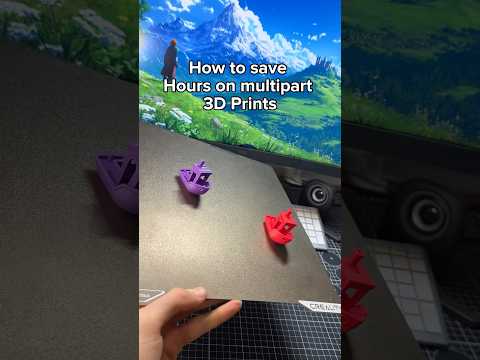
- Print several copies at once. Identical colored parts on one plate share the same changes, so waste per part drops with every copy.
- Keep color changes low in the part. The prime tower stops at the last change, so a part with its colors near the bottom needs a much shorter tower.
- Order light to dark. Switching from a light to a dark color needs far less flushing than the reverse.
Good: a two-color sign lying flat. The colors stack by height, so the whole print needs a handful of changes.
Bad: the same sign standing upright. Now nearly every layer contains both colors and the change count, waste and print time multiply.
A four-color figurine wastes far more filament than it uses. Which change lowers waste per figurine the most?
Copies that share the same colors on each layer share the same filament changes, so the purge is split between more parts. Turning off the prime tower also disables flush-into-infill and risks poor color transitions, and temperature has almost no effect on purge volume.
How to prepare a model for multicolor printing
The slicer needs to know which filament goes where, and the result should be saved as a 3MF: unlike STL, it stores parts, colors and filament assignments in one file. The file formats guide explains the difference.
- Model colors as separate parts. In CAD, make each color its own body and export a 3MF, or one STL per color. Load them as a single object with multiple parts and assign a filament to each. See free CAD software for 3D printing.
- Paint colors in the slicer. Bambu Studio and OrcaSlicer have a color painting tool, PrusaSlicer has multimaterial painting, and Cura added multi-material painting in version 5.11. Brush, fill by surface, or paint by height range.
- Assign filaments and check flushing. Map each color to a slot or tool, then review the flushing or purging volumes for your darkest-to-lightest pairs.
- Slice and read the totals. Compare the filament change count and the purge or prime tower grams. Rotate the part, change layer height or add copies and slice again: the cheapest version is often obvious.
If you'd rather not paint inside a slicer, PrintPal's browser painter loads STL, OBJ, 3MF, GLB and PLY files, lets you brush, smart-fill, bucket-fill or paint height bands with up to 16 filaments, and downloads a 3MF that Bambu Studio and OrcaSlicer open with every region already assigned. Nothing is uploaded.
Free PrintPal tool3D Model PainterPaint an STL with up to 16 filaments and export a ready-to-slice 3MFOpen toolFor textured models (AI-generated or scanned meshes in OBJ or GLB), the AMS Color OBJ Converter reduces the texture to 2–8 printable colors and saves a vertex-color OBJ that Bambu Studio and OrcaSlicer can import.
Design rules for clean color
- Make colored details at least about 1 mm wide, two or more line widths, or the slicer will drop or blur them.
- Give light colors over dark ones extra thickness. Filament is slightly translucent, so a white layer over black can look grey until there are several layers of it.
- Avoid tiny color islands. Each speck of a different color can force an extra change on that layer.
For wall thickness, clearances and overhang rules that apply to every part, see the 3D printing design guide.
HueForge and filament painting
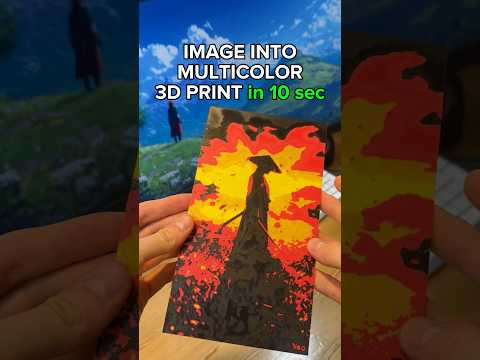
Filament painting builds an image from thin layers and a few swaps: a dark base first, lighter colors on top. Where the relief is thin the dark shows through as shadow; where it is thick the top color dominates.
The key number is Transmission Distance (TD): the thickness in millimetres at which a filament blocks about 95% of light. Low-TD filaments (most blacks) are opaque; high-TD whites are translucent and blend well. HueForge, the desktop app that popularised the technique, uses each filament's TD to predict the final look and exports the exact swap heights for your slicer.
- Print with fine layers, often 0.08 mm, so color transitions are smooth.
- Swaps happen by layer, so manual changes are enough; a feeder just saves you standing by.
- Start with three or four colors, such as black, grey and white for a monochrome image, before trying full color.
To try it in a browser, PrintPal's Filament Painter turns an image into a layered model, previews the blend, and exports an OBJ with colors (bundled with its MTL file) or a plain STL, plus a print guide that lists every swap height.
Free PrintPal toolFilament PainterTurn a photo into a layered multicolor print with a swap-height guideOpen toolPainting a print after printing
Paint is still the most flexible color system. Print in light grey or white, sand the layer lines, prime, then use acrylics or an airbrush. It wastes no filament and handles any number of colors, at the price of your evenings, which is why it remains the standard for miniatures and cosplay props.
Multicolor cost and time trade-offs
Hardware is the visible cost; purge and time are the hidden ones. Prices are October 2026 list prices.
| Approach | Upfront cost (USD) | Waste per change | Time per change |
|---|---|---|---|
| Manual change at layer | $0 | A short purge | Your attention at the right moment |
| Single-nozzle feeder | About $140–$300 per Bambu Lab unit; other brands similar or less | Roughly half a gram on average in Bambu Lab's cube test (83 g over 153 changes) | Roughly 30–90 s |
| Toolchanger | From about $749 (INDX 4-tool kit) and $999 (Snapmaker U1 list price) upward | About 0.013 g (Prusa's INDX figure) | About 5–15 s |
| Paint after printing | Paints and brushes | None | Hours per model |
If you print many changes per layer every week, a toolchanger's savings add up fast. If color is occasional, a feeder or a free filament change is the better deal. Plain PLA is the easiest material to learn on; see the PLA settings guide.
Frequently asked questions
Can any 3D printer print in multiple colors?
Yes. Any FDM printer can change color by height: add a pause or an M600 filament change at a layer in your slicer and swap the spool by hand. Putting different colors in the same layer needs a multi-material feeder (such as an AMS, MMU or CFS) or a printer with more than one nozzle.
What is the difference between an AMS and an MMU?
Both feed several spools into one shared nozzle and purge the old color on every change. Bambu Lab's AMS units hold four spools each and several can be chained on supported printers, with drying on the AMS 2 Pro and AMS HT. Prusa's MMU3 is an open, user-serviceable add-on that switches between five filaments on Prusa MK-series printers.
How do I reduce purge waste when printing in multiple colors?
Flush into the object's infill or supports, or into a sacrificial object, and test a slightly lower flushing multiplier (0.8 to 0.9). Then cut the number of changes: orient the model so colors stack by height, use a taller layer height, and print several copies on one plate so they share the same changes.
Is a toolchanger better than an AMS for multicolor printing?
For frequent multicolor printing, usually yes: each color has its own nozzle, so a change takes seconds and wastes a fraction of a gram instead of purging every time. If you mostly print single-color parts with an occasional logo, a cheaper single-nozzle feeder or a manual filament change is the better value.
What is HueForge?
HueForge is a desktop app for filament painting: it turns an image into a thin layered relief that you print with a few filament swaps by layer. Because filament is slightly translucent, thin layers blend optically, and HueForge uses each filament's Transmission Distance (TD) to predict the result.
Related articles
Sources & further reading
- Bambu Lab Wiki — Reduce waste during filament change
- Bambu Lab — H2D FAQ (AMS 2 Pro and AMS HT limits)
- Prusa Knowledge Base — Color change
- Prusa Knowledge Base — Wipe tower, wipe to infill and wipe object
- Prusa Research blog — XL vs INDX: active and passive toolchangers
- HueForge Wiki — Common terms, including Transmission Distance
Tools for thisAll tools
Watch it doneVideo library

Thanks! We read every note and use them to decide what to update next.