Elephant's foot in 3D printing: why the bottom flares and how to fix it
Elephant's foot is a 3D printing defect where the first few layers bulge outward, so the base of the part ends up wider than the walls above it. It comes from a first layer that is squished too hard or stays soft too long. Fix it by easing the Z-offset up, dropping the bed about 5 °C and turning on your slicer's elephant foot compensation.
- Raise the Z-offset 0.02–0.05 mm so the first layer is flat and touching, not smeared into glass.
- Lower the bed 5 °C. For PLA, 55–60 °C is usually plenty.
- Turn on elephant foot compensation at 0.1–0.2 mm in PrusaSlicer, OrcaSlicer or Bambu Studio. In Cura, set Initial Layer Horizontal Expansion to −0.1 mm.
- Put first-layer flow back to 100% if you or a profile raised it.
- For parts that must fit, add a 0.4–0.6 mm 45° chamfer to the bottom edge in CAD.
What is elephant's foot in 3D printing?
Definition: Elephant's foot is an outward flare on the bottom one to three layers of an FDM print. The first layer gets pressed or sags sideways before it sets, and the base spreads out like, well, an elephant's foot.
Run a fingernail down the side of a box you printed. If it catches on a lip right at the bottom, that's it. The flare is usually a few tenths of a millimetre or less, which is invisible on a figurine and maddening on anything that has to fit.
You'll notice it most when a lid won't seat, a box rocks on its base, or a part won't slide into a slot. Holes on the bottom face come out undersized too, because the same squish pushes plastic inward into the hole. Bambu Lab's wiki calls this out for assemblies, snap fits, rails and shaft holes, where the flared base "directly affects fit."
The first layer is set up to flare. It's printed onto a hot bed, deliberately squished for adhesion, usually printed with the part-cooling fan off, and then it carries the weight and heat of every layer above it. A little spread is normal. Too much is a tuning problem.
What causes elephant's foot
There's rarely just one culprit. Most cases are a too-low nozzle plus a too-hot bed, with a heavy part making it worse.
| Cause | What happens | Tell-tale sign |
|---|---|---|
| Nozzle too close (over-squished first layer) | Plastic is pushed sideways past the outline as it's laid down. | First layer is glassy smooth with no visible lines, or has ridges and waves. |
| Bed too hot | The bottom layers stay near their softening point and sag outward under load. | Flare spans two or three layers, not just the first. Worse on tall parts. |
| Heavy or solid parts | More weight and more stored heat press on a base that hasn't firmed up. | Big solid blocks flare more than thin-walled shells on the same settings. |
| First-layer flow too high | Extra plastic has nowhere to go but out. | Flare even when the Z-offset looks right. First-layer flow above 100%. |
| Hot, slow first layer | The plastic spends longer molten before it's covered. | Nozzle at the top of the filament's range and a very slow first-layer speed. |
| Fan held off for too long | The base never gets a chance to cool before more weight arrives. | Slicer set to "no cooling" for many more than the first few layers. |
How to fix elephant's foot, step by step
Work through these in order. The first two fix the cause; compensation and chamfers clean up whatever is left. Tick each one off as you go.
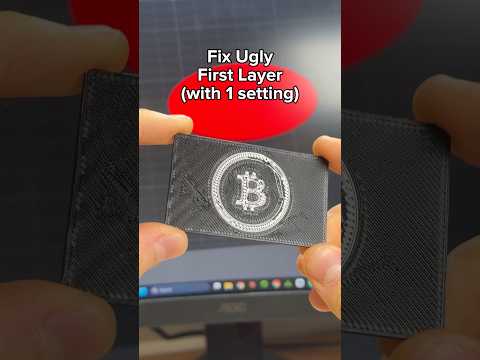
- Ease the Z-offset up. Raise it 0.02–0.05 mm at a time (less squish) and print a first-layer test patch. You want lines that are flat and touching with no gaps, but still visible as lines. A first layer that looks like a sheet of glass is too low. Printers that measure Z-offset automatically by touching the bed with the nozzle (many 2025–2026 machines from Bambu Lab, Prusa, Elegoo and others) can still read it wrong if there's a blob on the nozzle: clean the tip, re-run calibration, then fine-tune with the printer's Z-offset or Live Adjust Z setting if it has one. Full method in bed leveling and Z-offset.
- Drop the bed temperature 5 °C. PLA's glass transition is around 60 °C, so a 65–70 °C bed keeps the base soft for the whole print. Try 55–60 °C for PLA, 70–75 °C for PETG and 95–100 °C for ABS. Most slicers let you set a separate first-layer bed temperature, so you can keep layer one hot for grip and run the rest 5 °C cooler. Stay inside the filament's range or you'll trade a flared base for a print that pops off.
- Turn on elephant foot compensation. This shrinks the outline of the first layer inward so that, after the squish, the base lands on size. Start at 0.1–0.2 mm; the slicer-by-slicer settings are in the table below.
- Check first-layer flow and line width. If a profile pushes first-layer flow above 100% (Cura calls it Initial Layer Flow), set it back to 100%. A wider first-layer line, around 0.5 mm on a 0.4 mm nozzle, is normal and fine. If every wall looks fat, not just the base, you're over-extruding everywhere: see over-extrusion.
- Chamfer the bottom edge in CAD. A 0.4–0.6 mm 45° chamfer gives the squish somewhere to go, so the flare fills the bevel instead of sticking out. This is the only fix that works even on a perfectly tuned printer.
Don't chase it with the nozzle alone. Raising the Z-offset until the first layer shows gaps trades a cosmetic flaw for a print that comes loose halfway through. If the first layer starts losing grip, stop raising Z and let compensation do the rest. Our first layer not sticking guide shows what a healthy first layer looks like.
Elephant foot compensation settings in each slicer
Every major slicer has this setting, but only three of them call it by the same name. All of them work the same way: they pull the first-layer outline inward by the distance you enter.
| Slicer | Setting name | Where to find it | Starting value |
|---|---|---|---|
| PrusaSlicer | Elephant foot compensation | Print Settings → Advanced → Slicing (Advanced or Expert mode) | About 0.2 mm on a 0.4 mm nozzle. On by default in Prusa's own profiles. |
| OrcaSlicer | Elephant foot compensation, plus Elephant foot compensation layers | Process → Quality → Precision | 0.15 mm over 1 layer by default. More layers taper the correction. |
| Bambu Studio | Elephant foot compensation | Process → Quality → Precision | 0.15 mm on most profiles; lower on some A1-series profiles. |
| UltiMaker Cura | Initial Layer Horizontal Expansion | Print settings → Walls (set visibility to Expert or All) | −0.1 mm. It's negative because it shrinks the layer. |
Two things confuse people the first time:
- The brim looks detached in the preview. That's expected. Compensation shrinks the first layer, and the preview doesn't simulate the squish that fills the gap. Prusa, Bambu Lab and OrcaSlicer all document this. If the brim really doesn't attach on the printed part, your value is too high.
- Thin features look pinched. PrusaSlicer (2.2 and newer) avoids shrinking thin features below two perimeter widths, so narrow bits can look odd in preview. They print fine. If one bothers you, set compensation to 0 for that model.
How to measure elephant's foot with calipers
For figurines, the default compensation is fine. For parts that must fit, measure once and set an exact value. You need digital calipers that read to 0.01 mm.
- Print a test block. A 25 × 25 × 10 mm cube works. Set compensation to 0 (Cura: Initial Layer Horizontal Expansion 0) and turn the brim off.
- Let the bed cool fully before removing it. Prying a warm part off can bend the base and skew the reading.
- Measure the reference width. Take X and Y near the top, in the middle of each side. Avoid the corners, which bulge for other reasons.
- Measure the base. Take X and Y right at the bottom edge with the jaws touching lightly. Squeezing flattens the flare and gives you a reading that's too small.
- Work out the flare per side. Subtract the top width from the base width, then divide by 2 because the flare is on both sides. Average X and Y.
- Enter it, reprint, re-measure. Adjust in 0.05 mm steps until the base and the top match within about 0.05 mm.
| Worked example | X | Y |
|---|---|---|
| Top (reference) | 24.98 mm | 25.00 mm |
| Base | 25.26 mm | 25.22 mm |
| Total flare | 0.28 mm | 0.22 mm |
| Flare per side | 0.14 mm | 0.11 mm |
| Starting compensation | About 0.12 mm (average of X and Y) | |
Why halve it? PrusaSlicer and OrcaSlicer document the value as an inward offset of the outline, so every edge moves by the full amount. Bambu Lab's wiki uses the averaged total difference as its starting value instead. Either way, the second test print is the real calibration. Bambu also notes the right value changes between build plate types, so re-measure when you swap plates.
As a rule of thumb, here's what your number is telling you:
| Flare per side | What to do |
|---|---|
| Under 0.05 mm | Normal FDM variation. Ignore it unless the part is a press fit. |
| 0.05–0.2 mm | Typical. Compensation handles it. |
| 0.2–0.3 mm | Fix the Z-offset and bed temperature first, then compensate what's left. |
| Over 0.3 mm | The cause is upstream: nozzle far too low, bed far too hot or flow too high. Don't paper over it in the slicer. |
Your test cube measures 25.30 mm at the base and 25.02 mm at the top. What elephant foot compensation should you start with?
The base is 0.28 mm wider in total, but that flare is split across two sides, so each edge sticks out about 0.14 mm. Start there, reprint the cube and fine-tune in 0.05 mm steps.
Design it out: chamfer the bottom edge
Even a well-tuned printer leaves a trace of squish. The permanent fix lives in the model: a small 45° chamfer, 0.4–0.6 mm, around the outside bottom edge. The flare fills the bevel and the part sits flush. Chamfer the bottom edge of any hole on the build-plate face too, so pins and bolts still go in. Our 3D printing design guide covers when to chamfer and when to fillet.
In OpenSCAD, the easy way is a hull() between a slightly inset sliver at the bottom and the full-size body:
// 40 x 30 x 20 mm block with a 0.5 mm 45-degree chamfer on the bottom edge
c = 0.5;
hull() {
  translate([c, c, 0]) cube([40 - 2*c, 30 - 2*c, 0.01]);
  translate([0, 0, c]) cube([40, 30, 20 - c]);
}
Or let the CAD Agent write it for you:
A 60 x 40 x 25 mm electronics box with 2 mm walls and a separate lid with a 0.2 mm clearance lip. Add a 0.5 mm 45-degree chamfer around the bottom outside edge of both the box and the lid so elephant's foot doesn't stop them sitting flush.
When it isn't elephant's foot
A few other defects show up at the bottom of a print and get misdiagnosed. Check which one you have before changing settings.
| What you see | Probably | Read |
|---|---|---|
| Base flares outward evenly on all sides, first 1–3 layers only | Elephant's foot | You're in the right place |
| Corners curl up and the bottom isn't flat | Warping | Warping and curling |
| Every wall is fat, top surfaces are rough, the whole part is oversized | Over-extrusion | Over-extrusion |
| A thin, ragged single-layer lip only where the brim was | Brim remnant | Trim with a deburring tool or knife |
| First layer is wavy or rippled, and the nozzle scrapes | Nozzle far too low | Bed leveling and Z-offset |
| Parts are consistently a little off-size at every height | Calibration (flow, shrinkage or steps) | 3D printer calibration guide |
Frequently asked questions
What is elephant's foot in 3D printing?
Elephant's foot is a flare on the bottom one to three layers of an FDM print that makes the base wider than the walls above it. It happens when the first layer is squished too hard or stays soft long enough to spread under the weight of the layers above.
How do I fix elephant's foot?
Raise the Z-offset 0.02–0.05 mm so the first layer is less squished, lower the bed temperature by about 5 °C, and turn on your slicer's elephant foot compensation at 0.1–0.2 mm. For parts that must fit together, also add a 0.4–0.6 mm 45° chamfer to the bottom edge in CAD.
What is elephant foot compensation called in Cura?
Cura calls it Initial Layer Horizontal Expansion, found in the Walls section with setting visibility set to Expert or All. Use a negative value such as -0.1 mm to shrink the first layer; PrusaSlicer, OrcaSlicer and Bambu Studio call the same idea elephant foot compensation and take a positive value.
Can a bed that is too hot cause elephant's foot?
Yes. A bed near or above the plastic's glass transition temperature keeps the bottom layers soft, so they sag outward under the weight of the print. For PLA, whose glass transition is around 60 °C, a 55–60 °C bed usually holds well without softening the base.
Why doesn't my brim touch the part when elephant foot compensation is on?
That gap in the slicer preview is normal: compensation shrinks the first-layer outline, and the preview doesn't show the squish that fills it. If the brim still doesn't attach on the real print, your compensation value is too high.
Related articles
Sources & further reading
- Prusa Knowledge Base — Elephant foot compensation
- Bambu Lab Wiki — Elephant foot compensation (with measurement method)
- OrcaSlicer Wiki — Precision settings: elephant foot compensation
- UltiMaker Support — UltiMaker Cura quality settings
- Ellis' Print Tuning Guide — First layer squish
Tools for thisAll tools
Watch it doneVideo library
Thanks! We read every note and use them to decide what to update next.